Upload to TikTok in high quality from a computer
Updated October 2026
TikTok compresses the videos you upload, which is why a clean export can look soft once it's posted. Upload120 prepares your file, which keeps TikTok from compressing it when you post from TikTok Studio. You'll need a Windows or Mac computer for the upload, but you can still edit on your phone.
Export your video
Use these settings in whatever editor you have:
- Resolution: 1080p
- Format: MP4 with H.264 video and AAC audio
- Frame rate: same as your project
- Bitrate: 20 Mbps or lower
If the file comes out too big, try the smaller file settings.
-
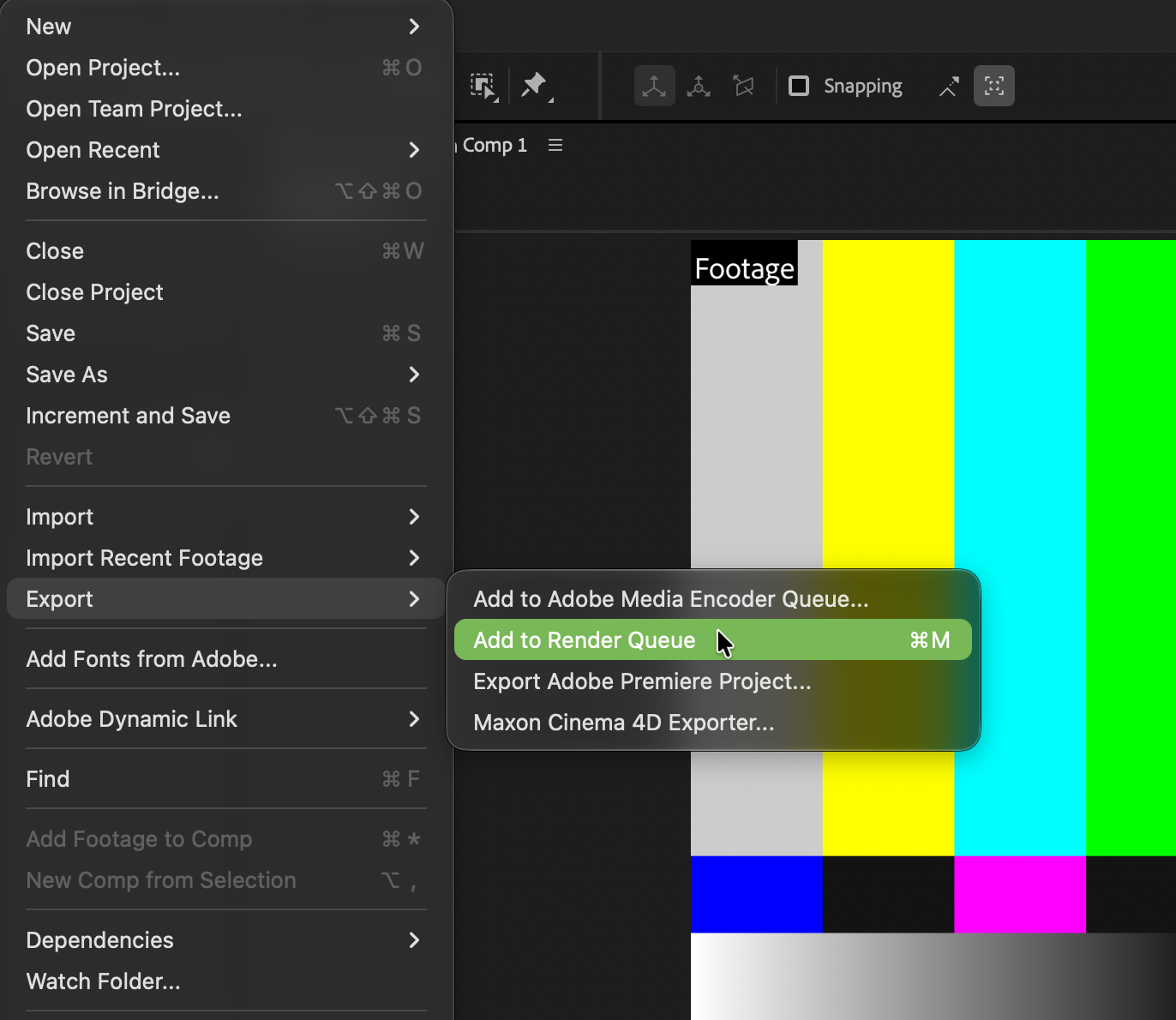
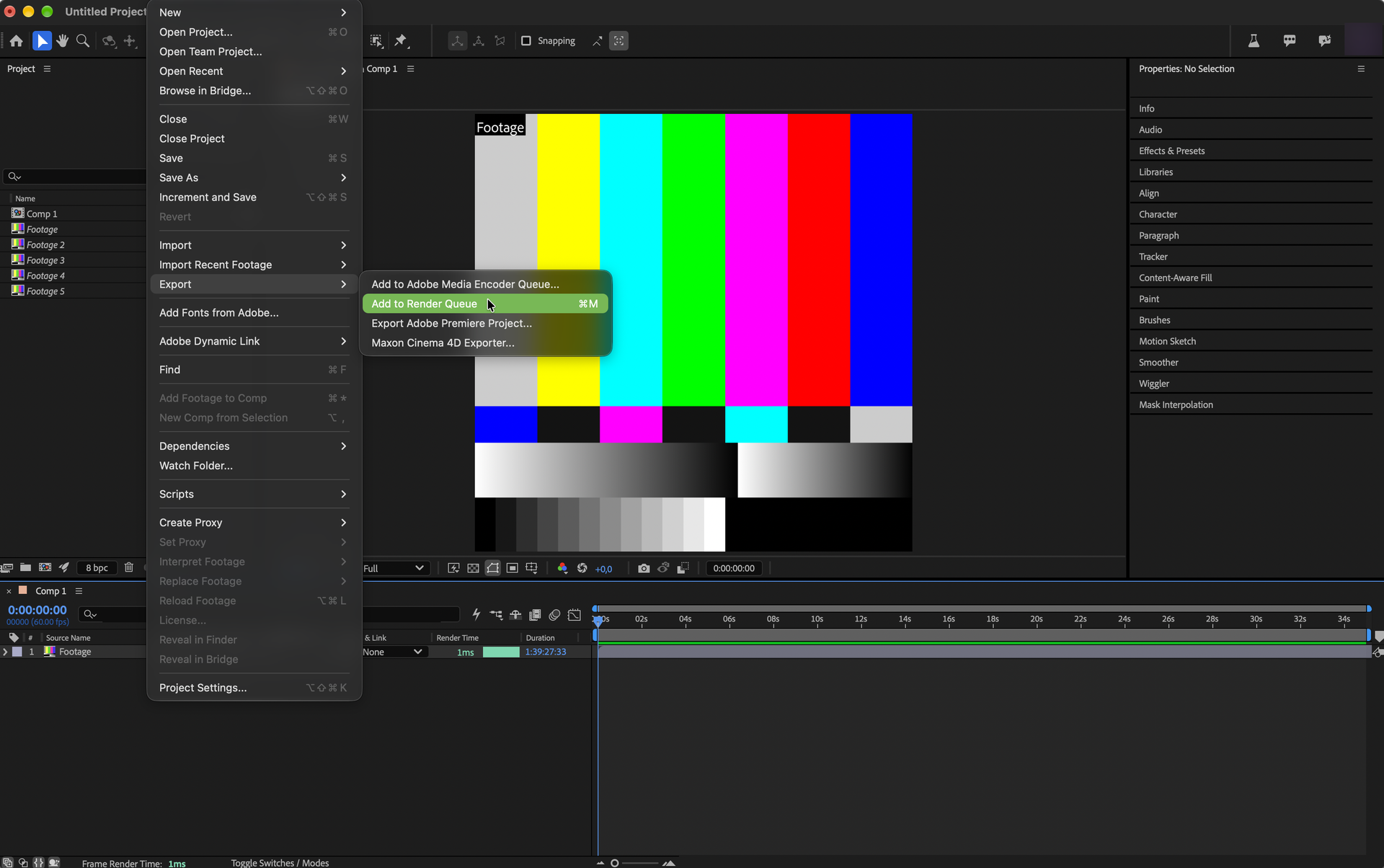
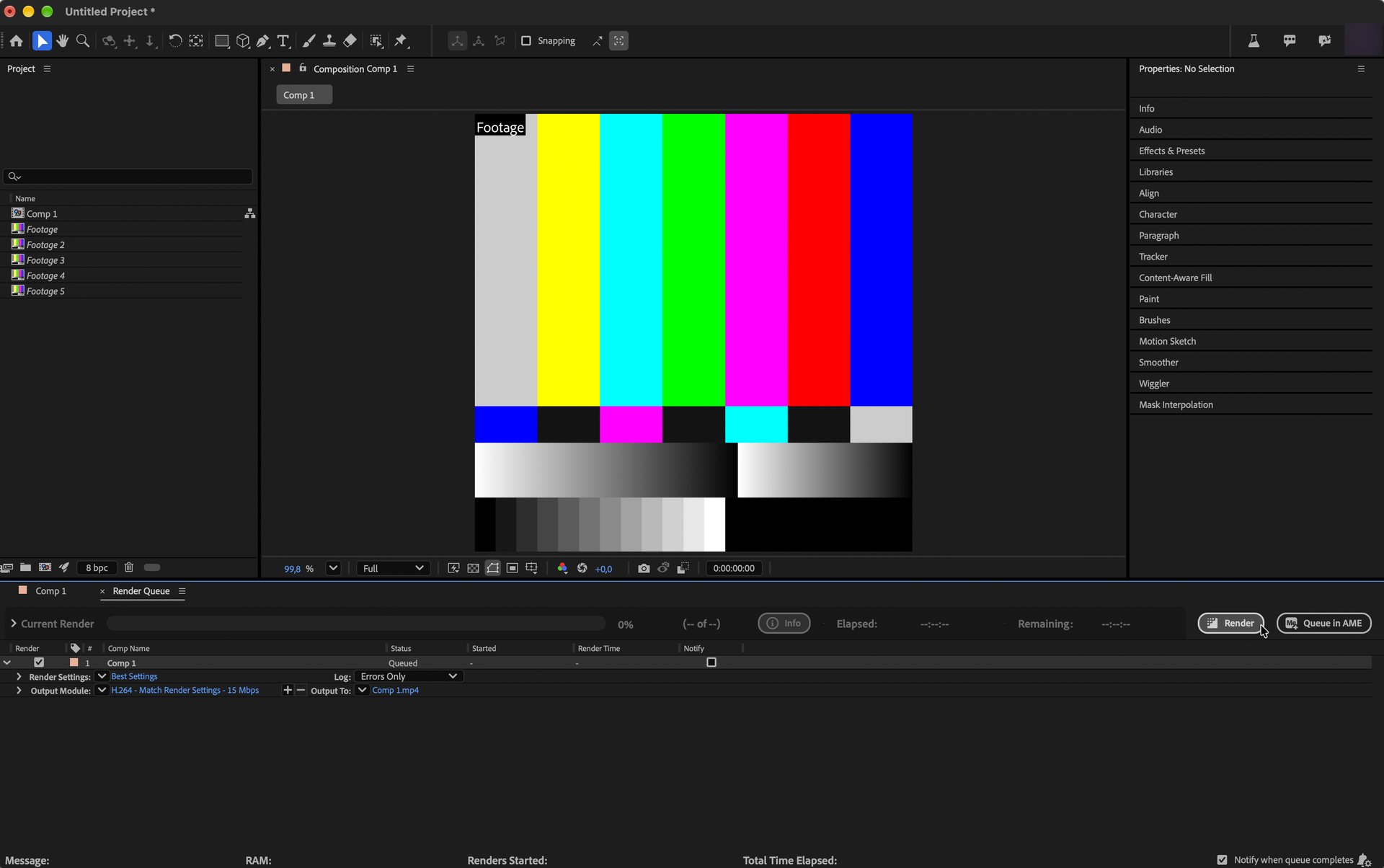
Choose File > Export > Add to Render Queue.
-
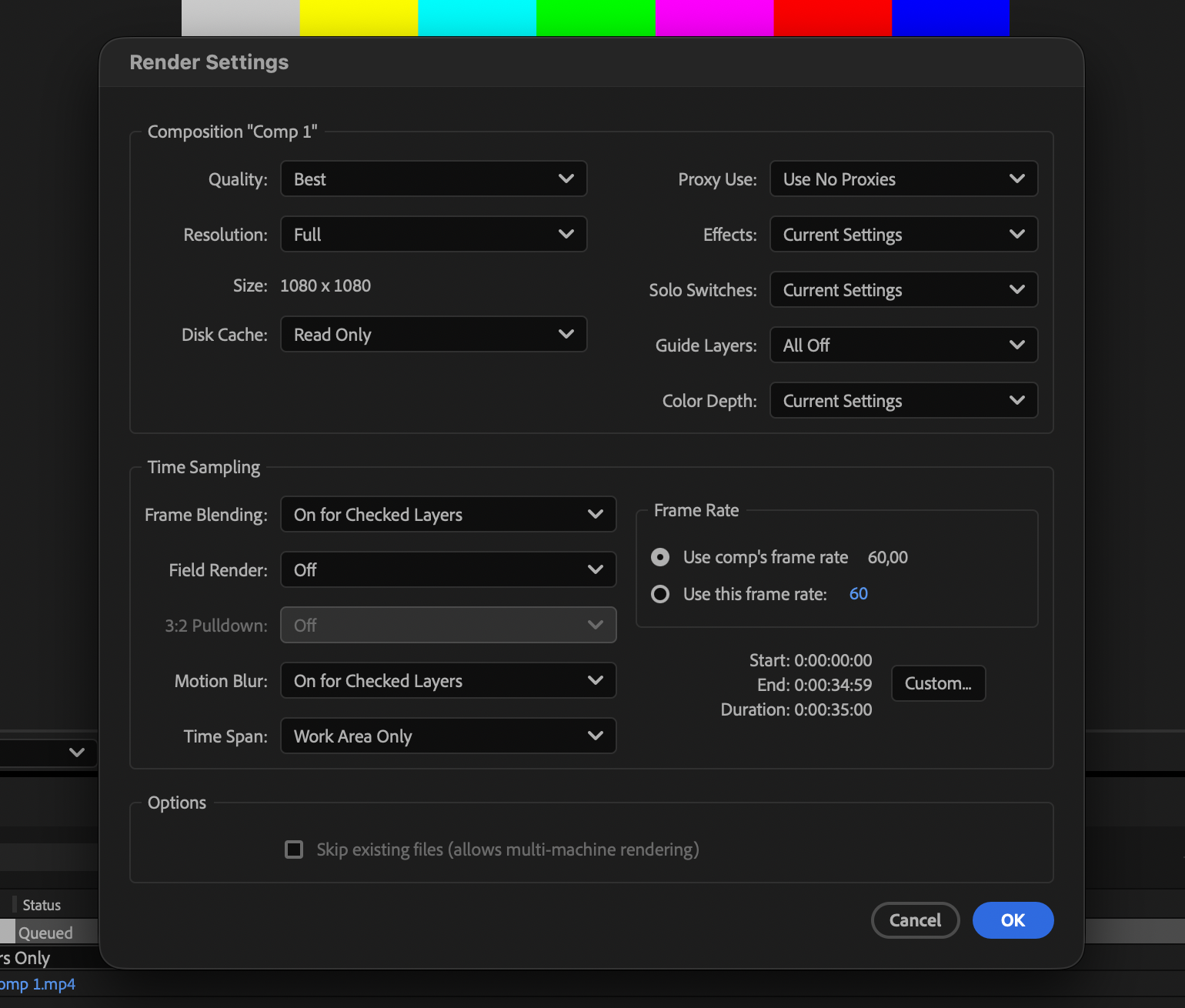
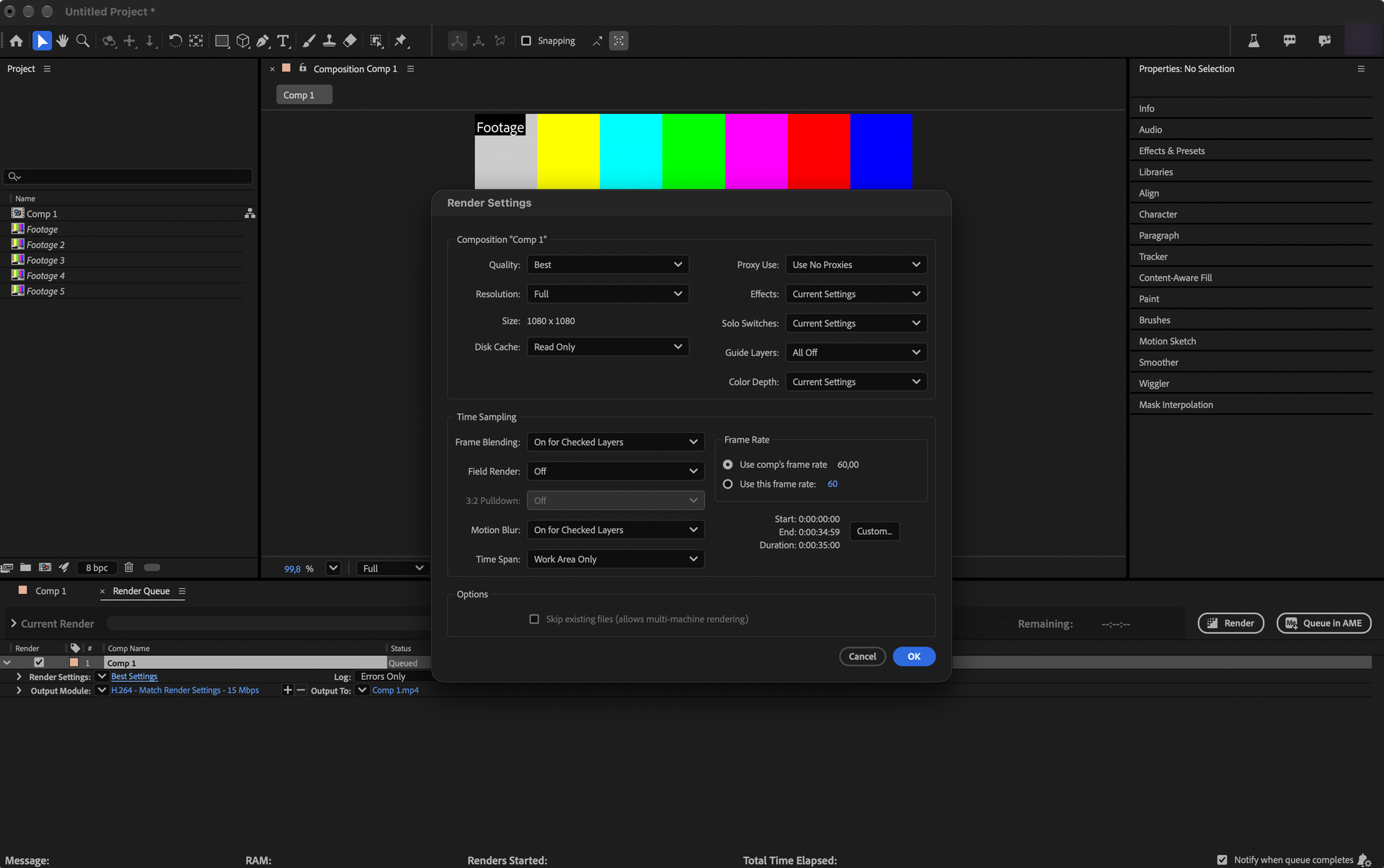
Open Render Settings and leave the frame rate on Use comp's frame rate.
-
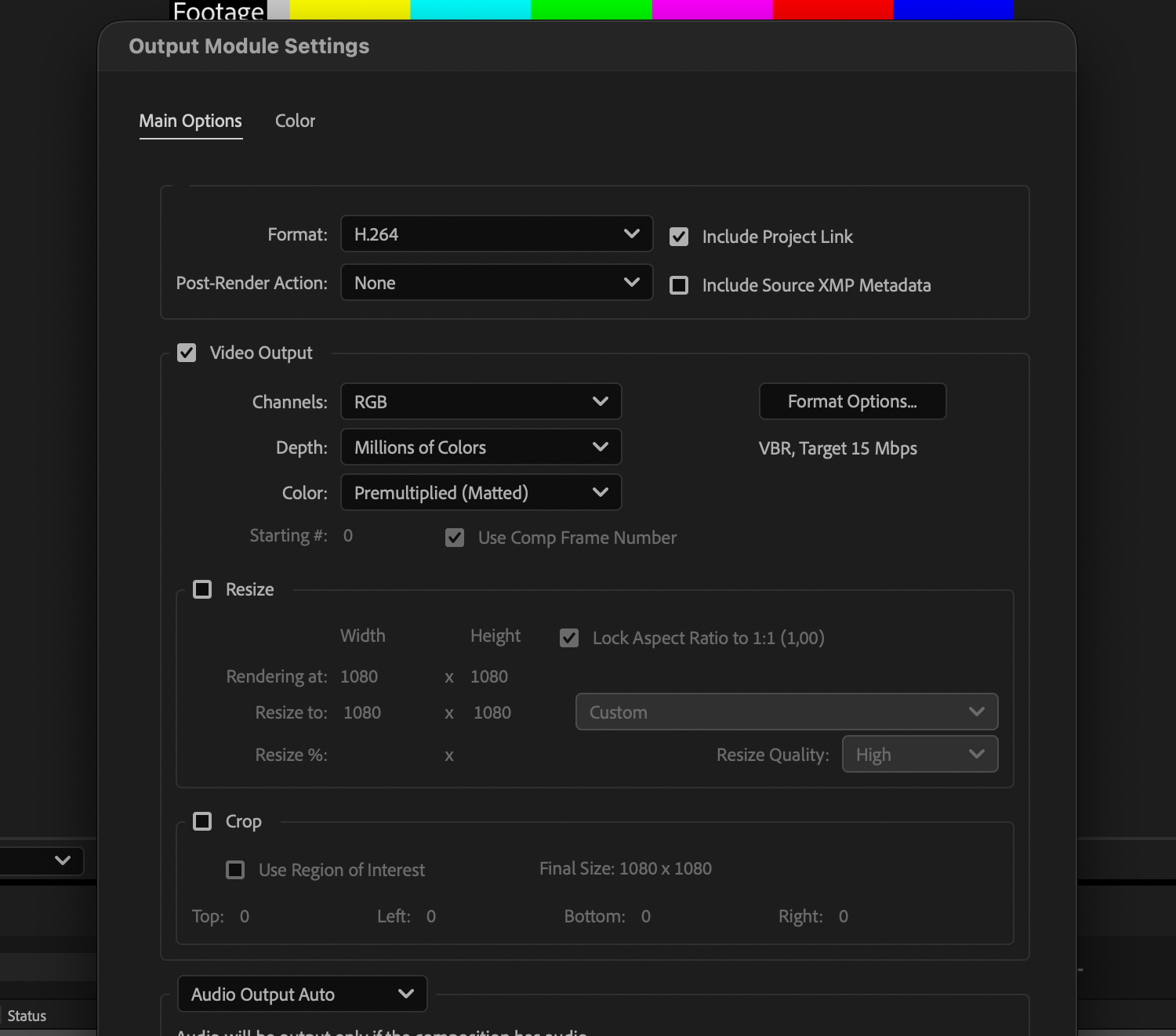
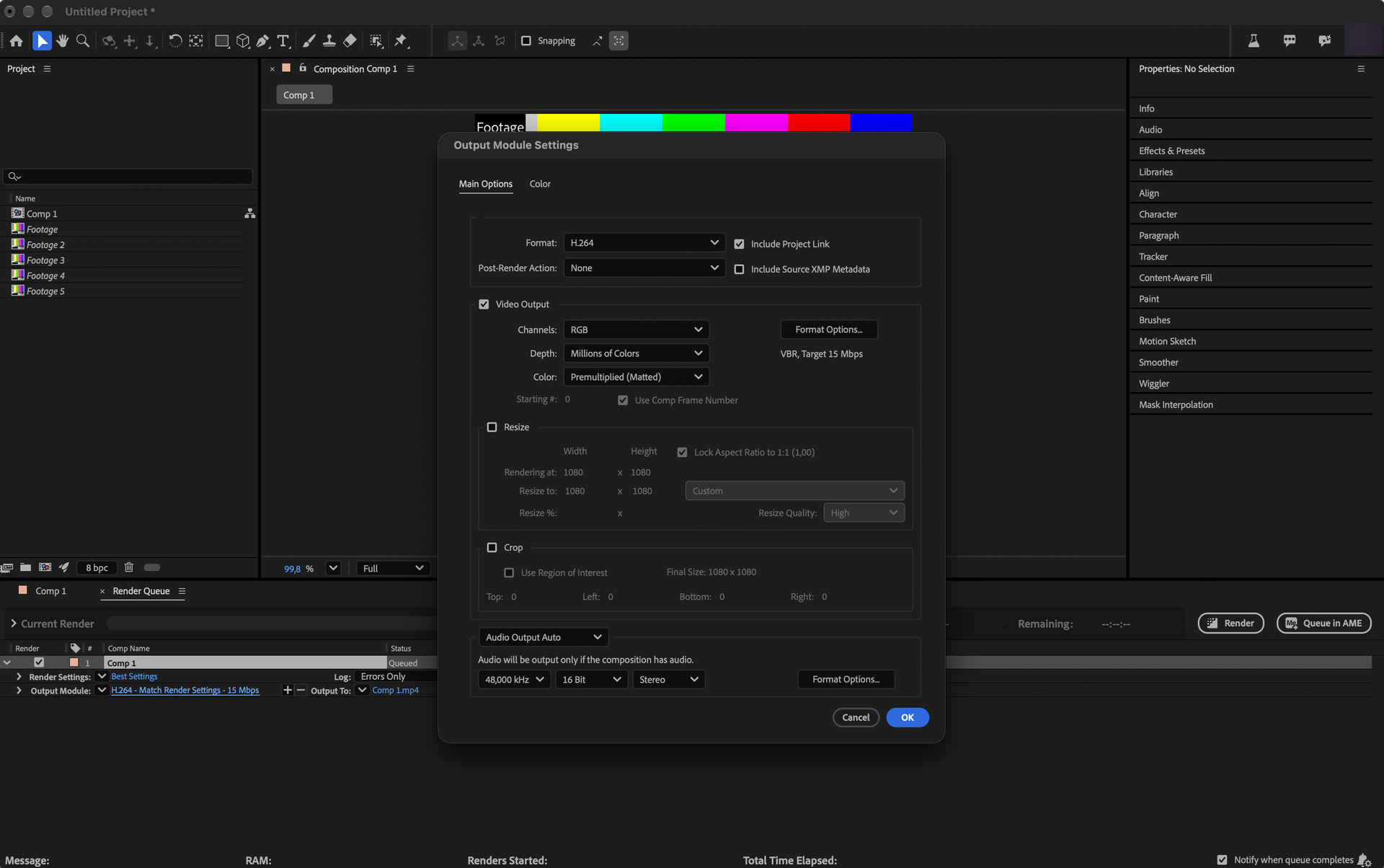
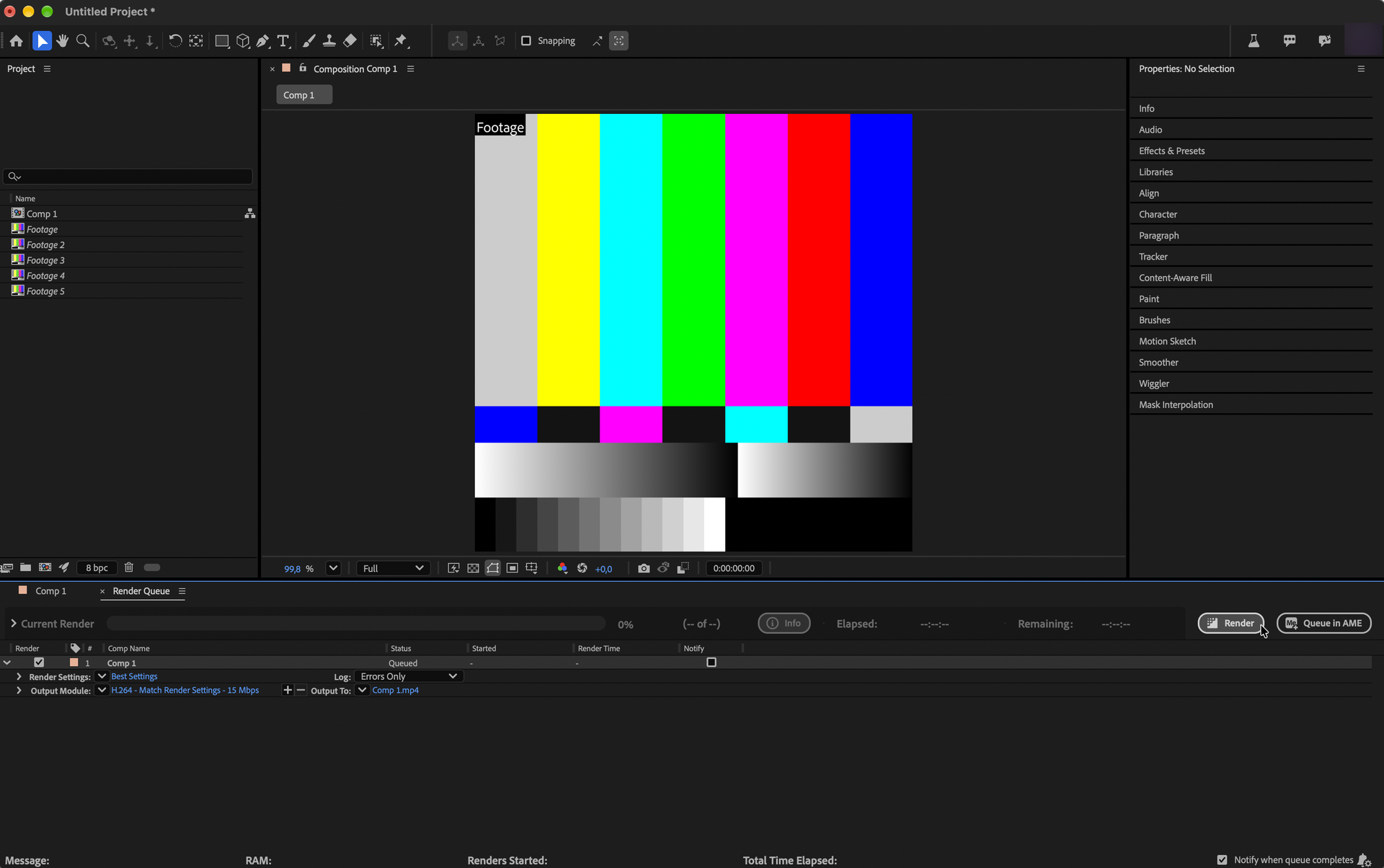
In the output module settings, set Format to H.264 (1). Check that the target bitrate is 20 Mbps or lower (2).
-
Back in the Render Queue, check that Output Module says H.264 (1), then click Output To (2).
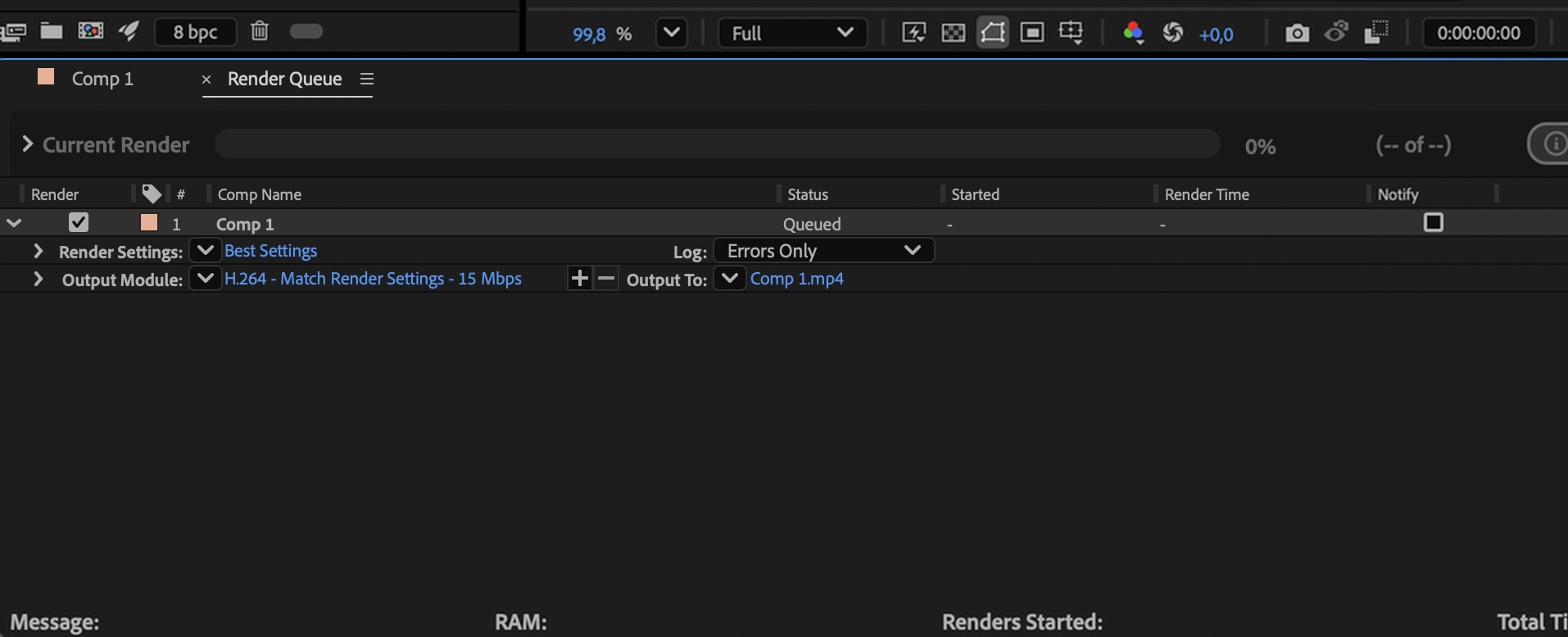
Pick a name and a folder for the file, then click Save.
-
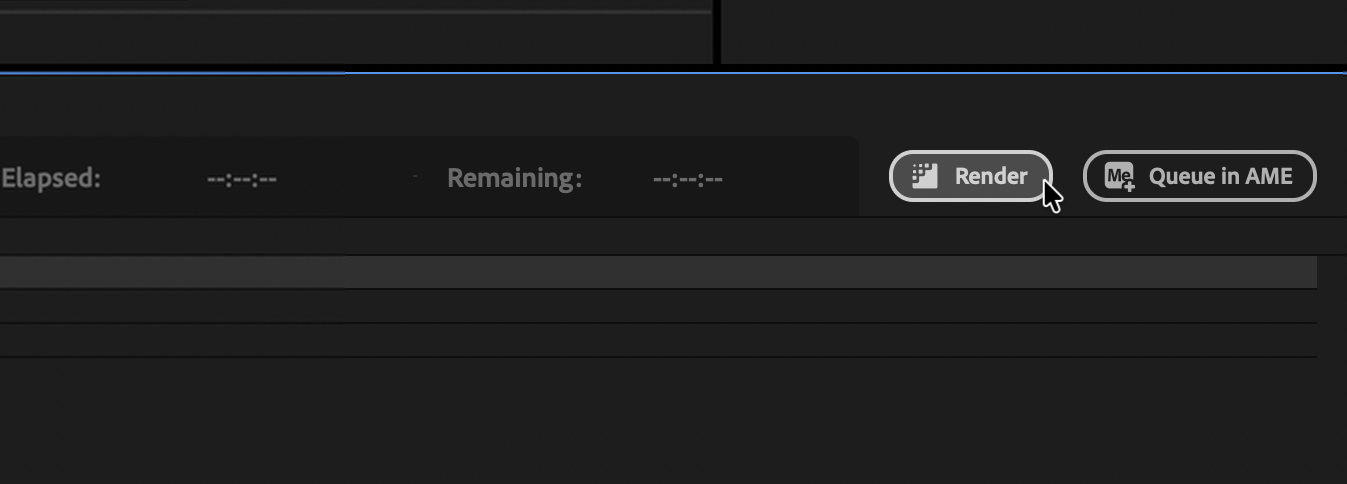
Click Render.
-
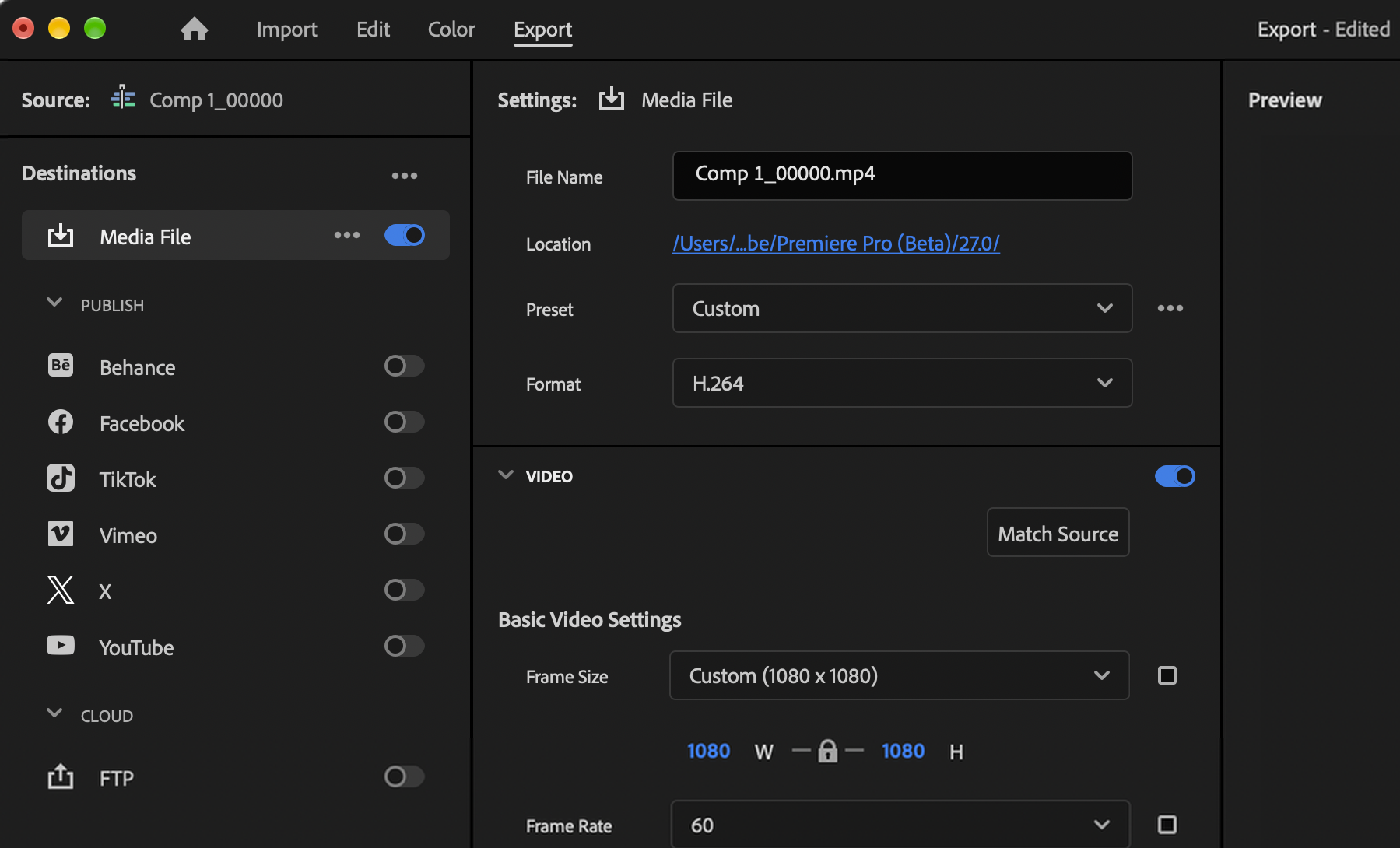
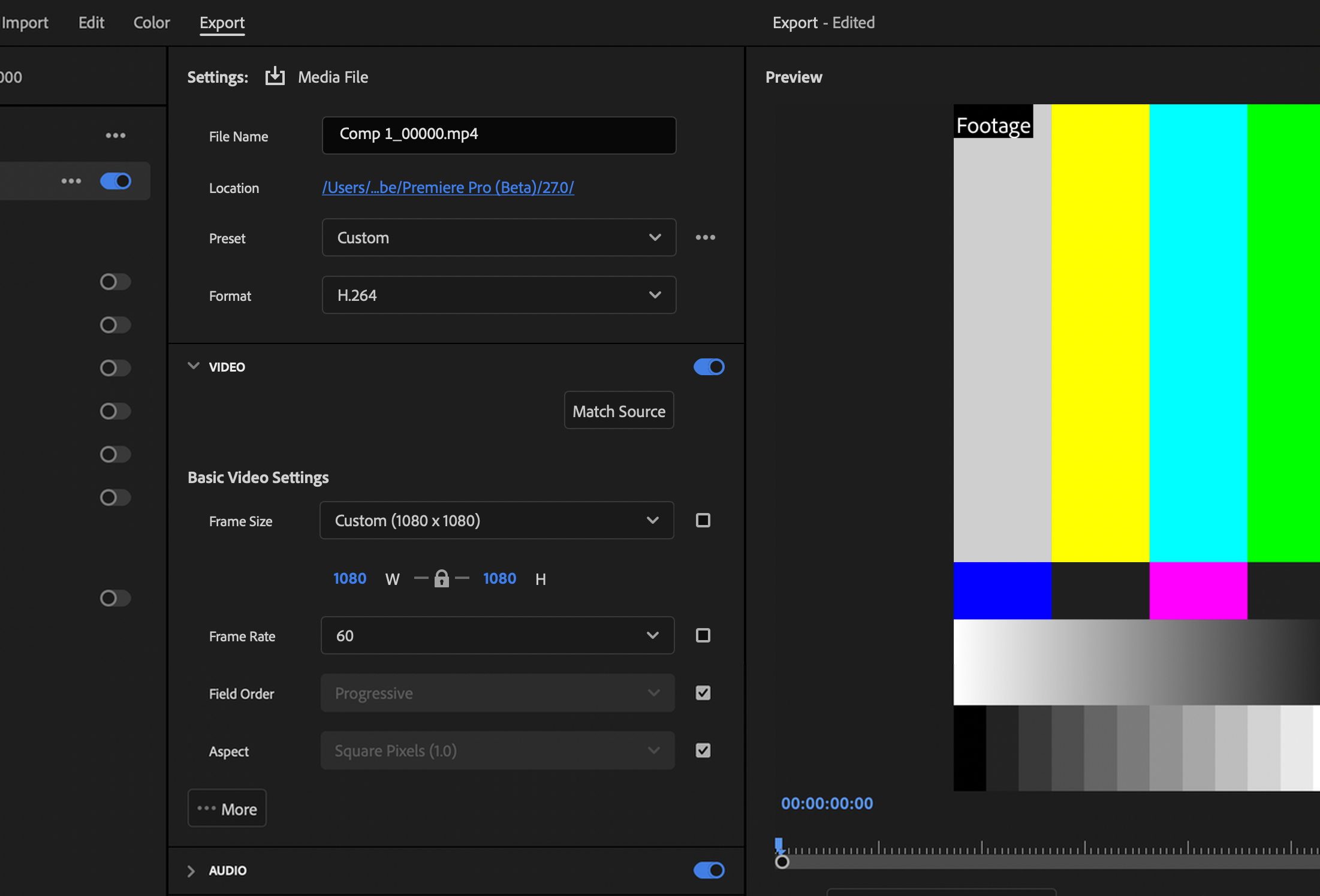
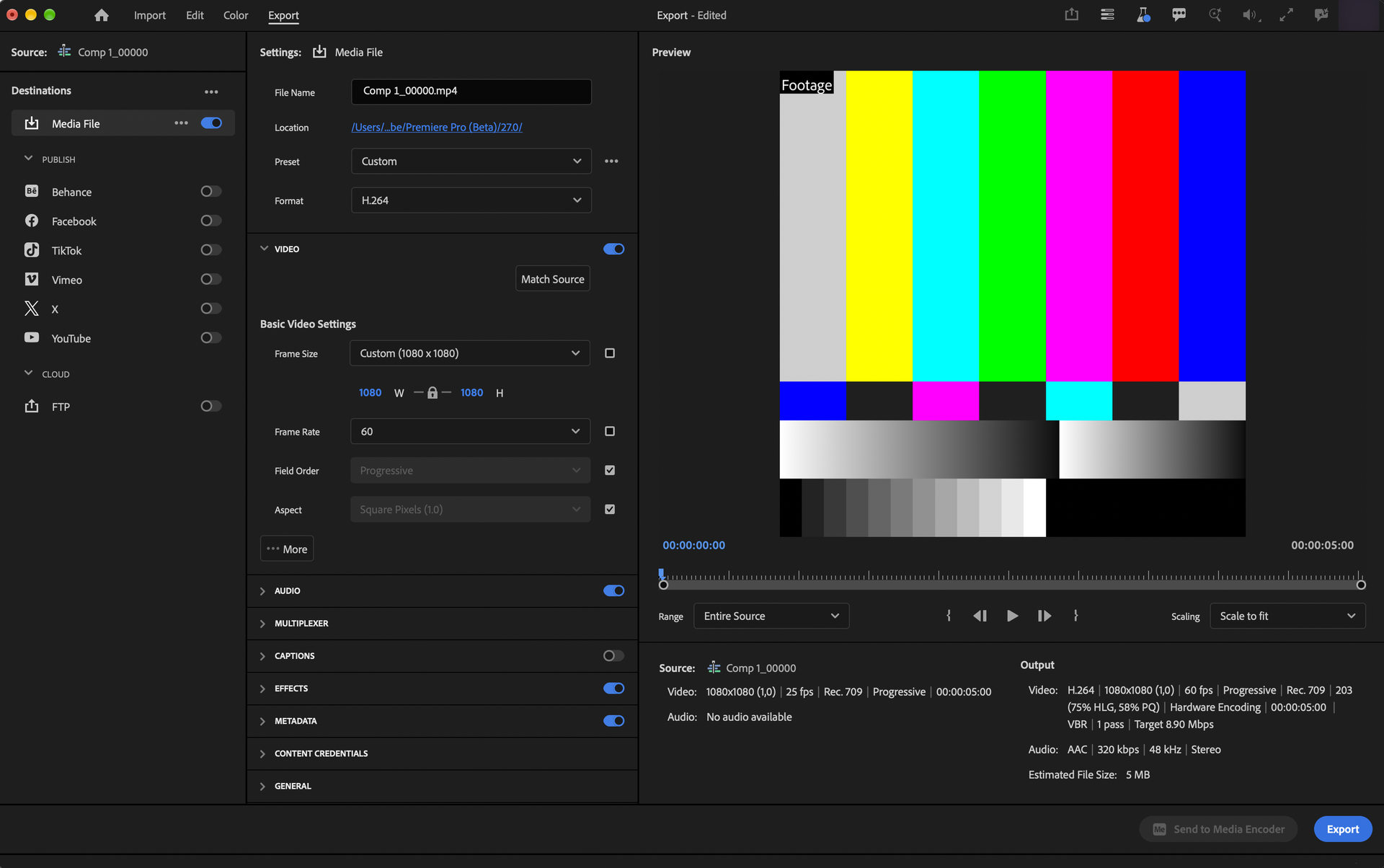
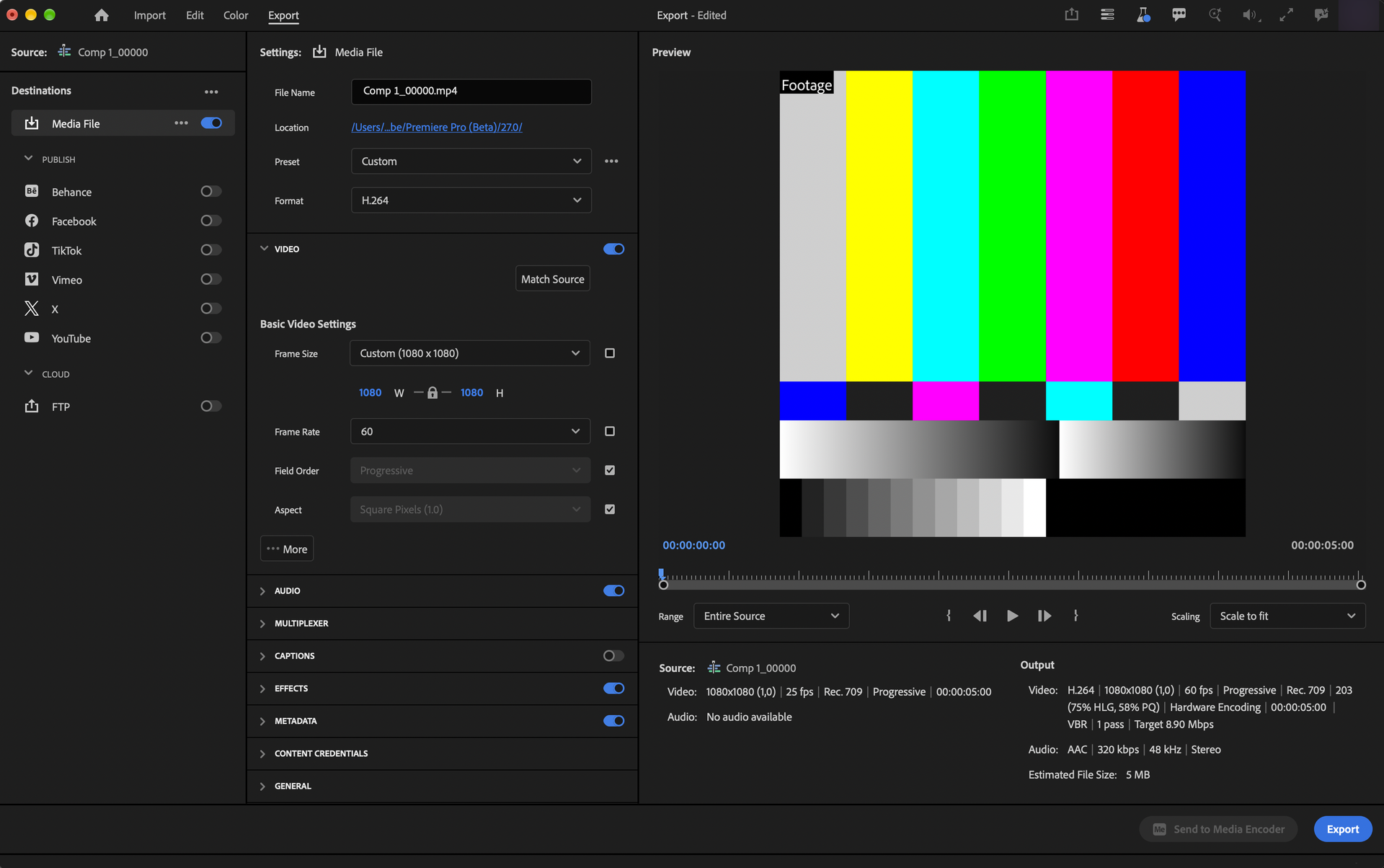
Open the Export tab at the top of the window.
-
Set Format to H.264.
-
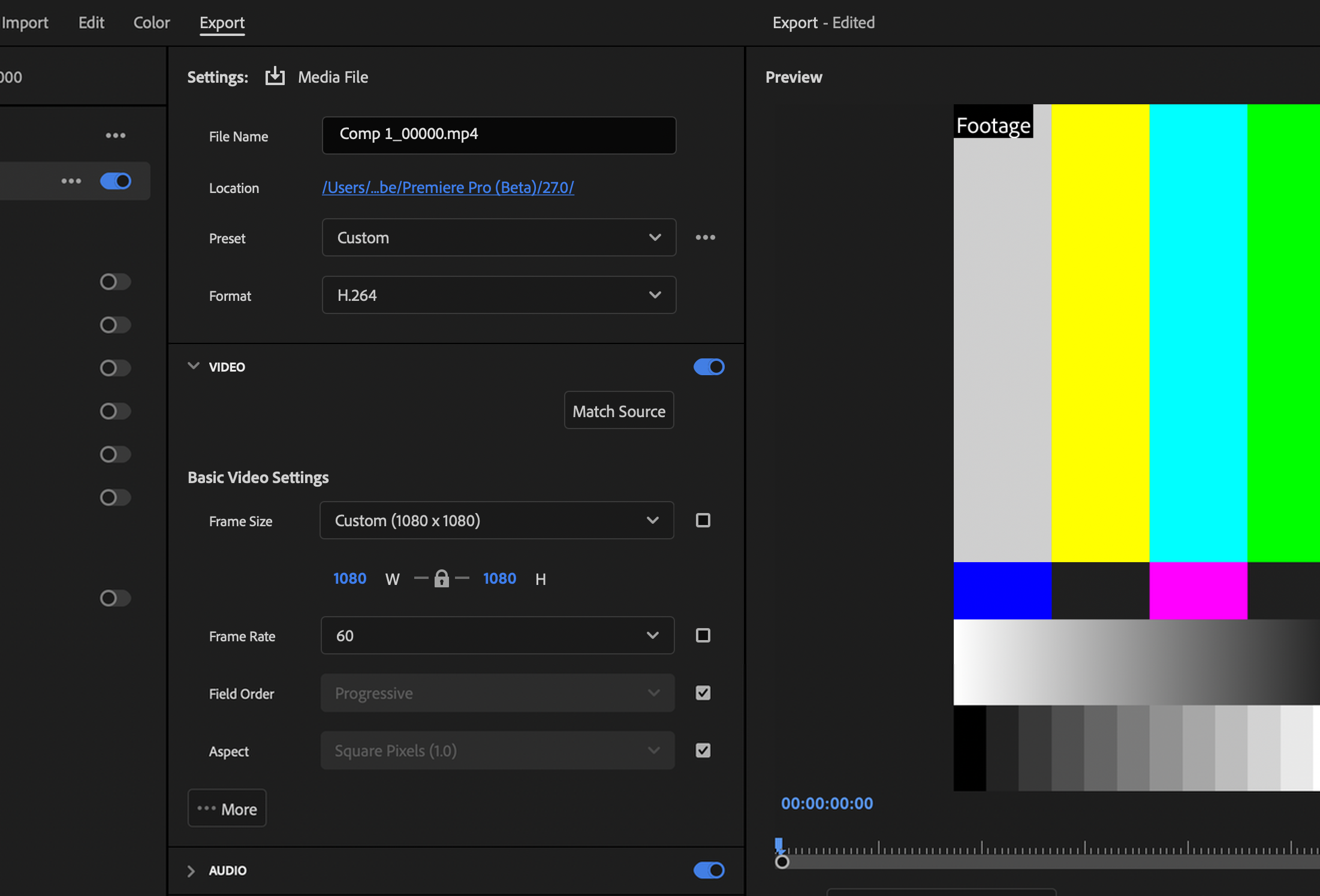
Under Video, set Frame Size to 1080p (1) and keep Frame Rate the same as your sequence (2).
-
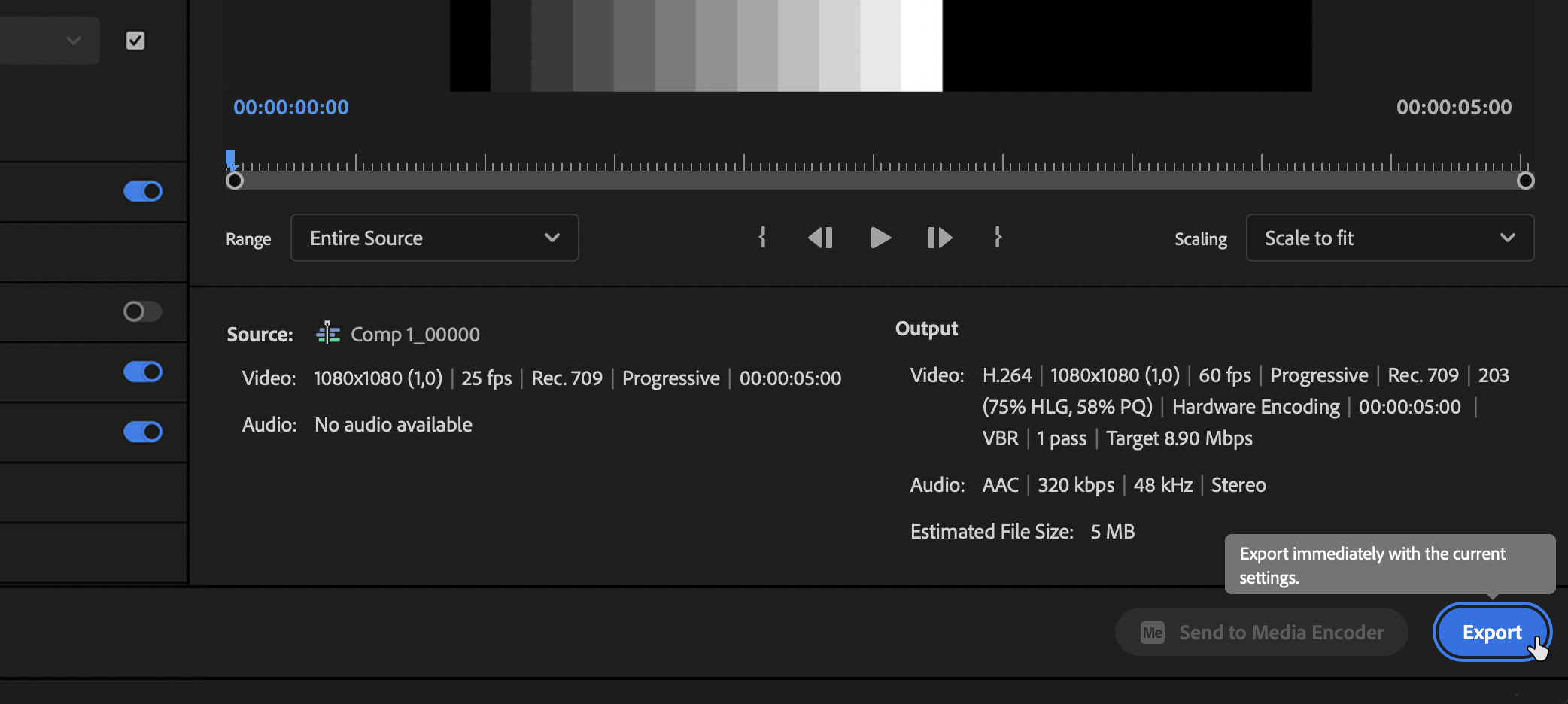
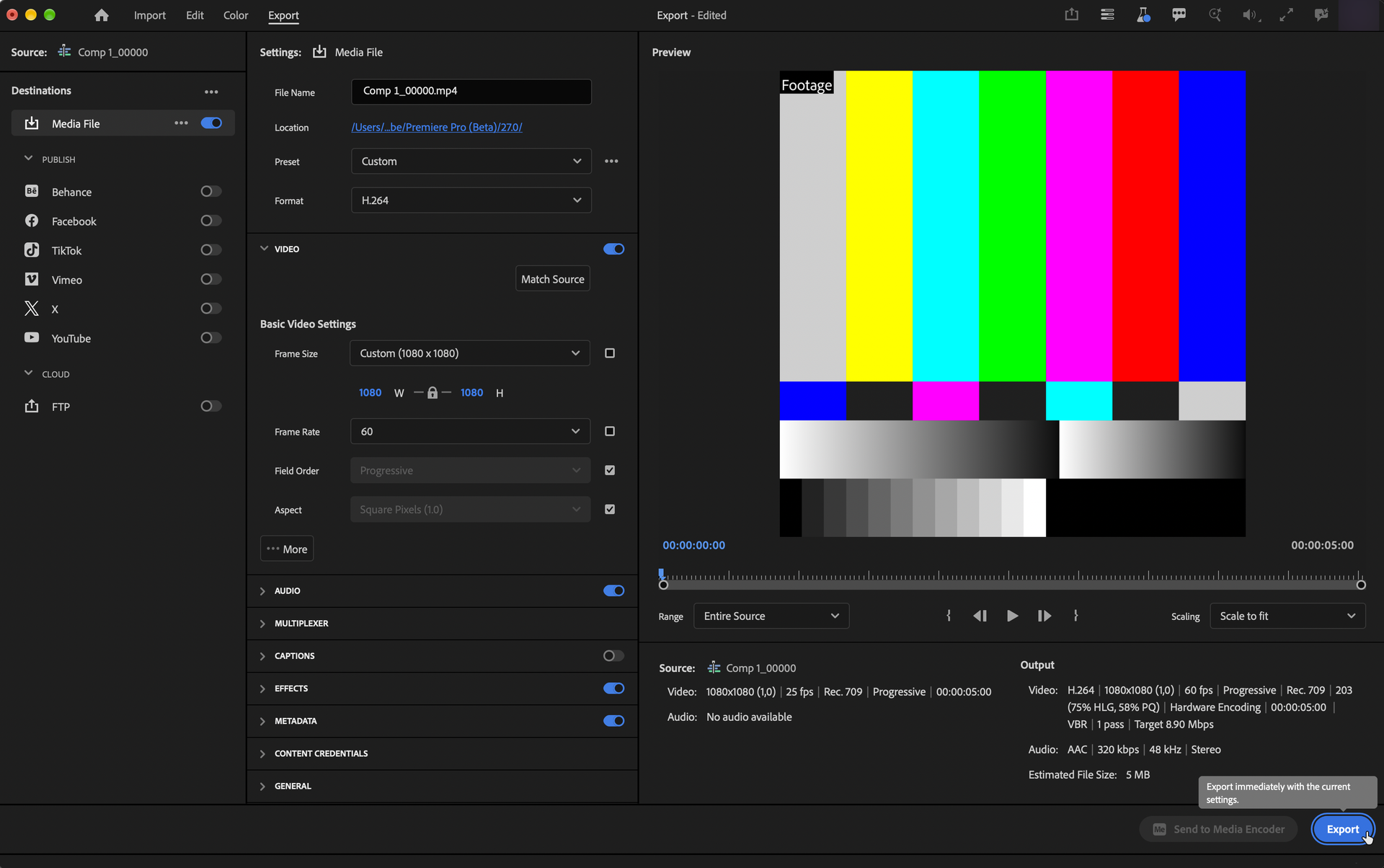
Click Export.
-
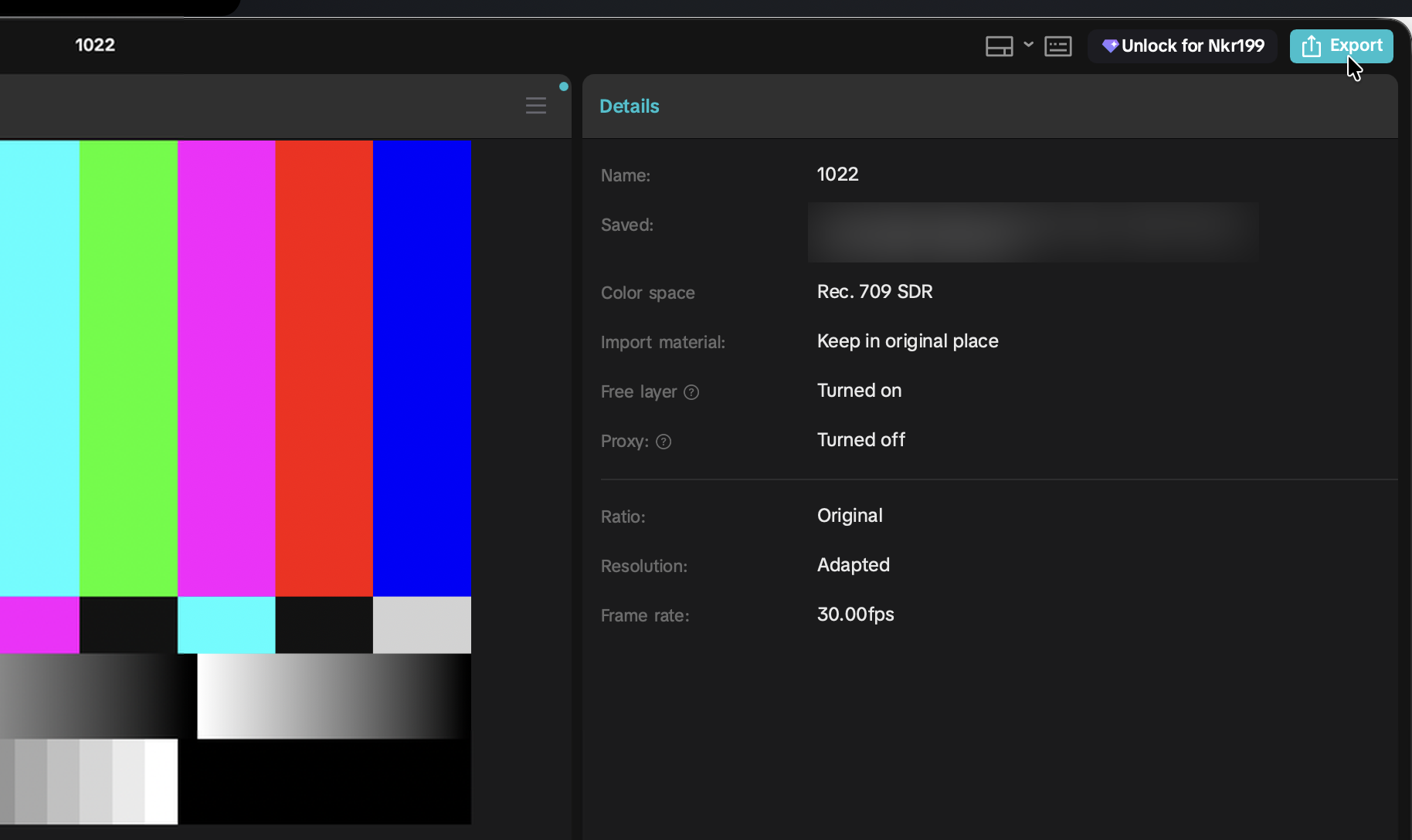
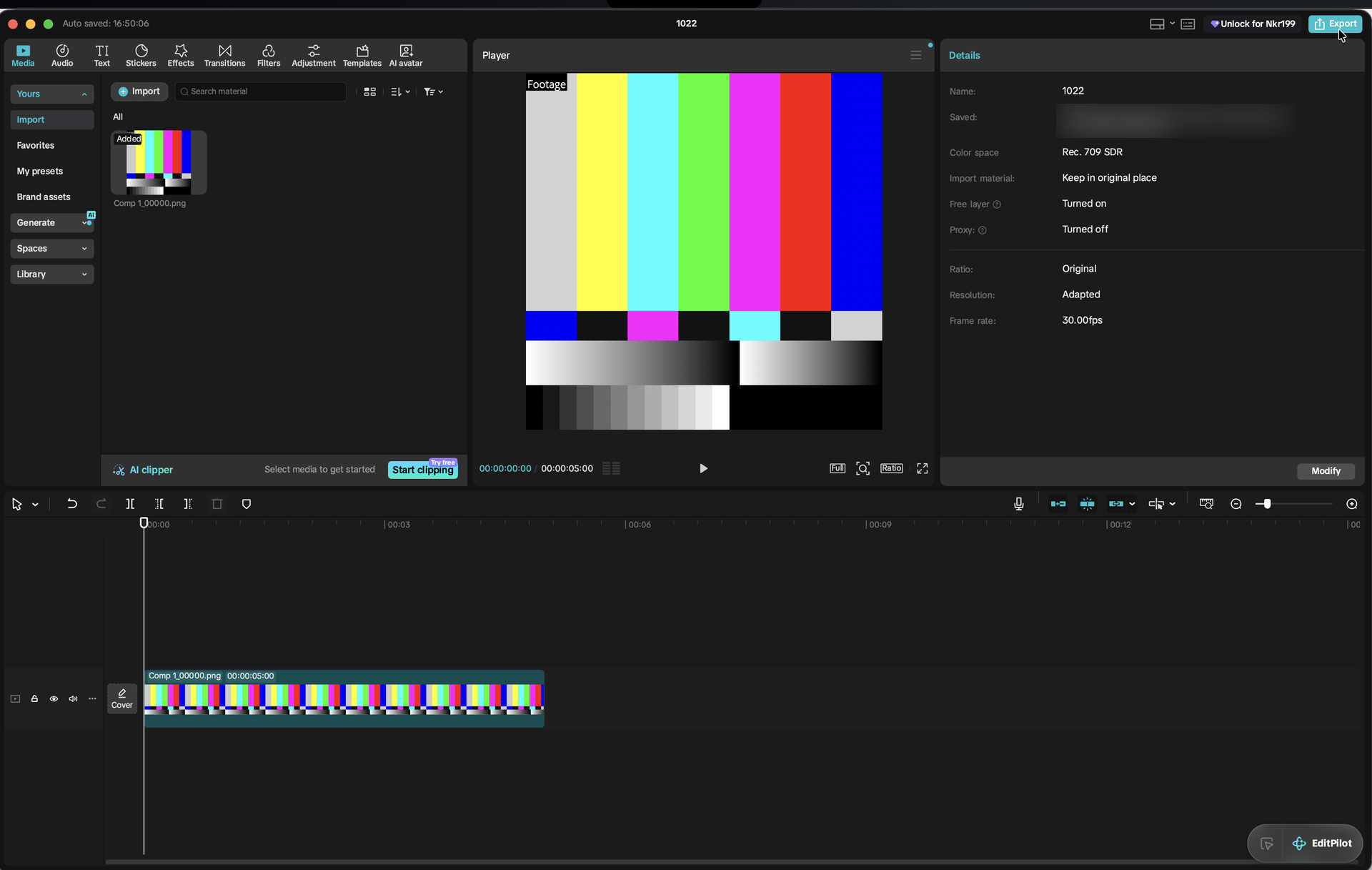
Click Export in the top right corner.
-
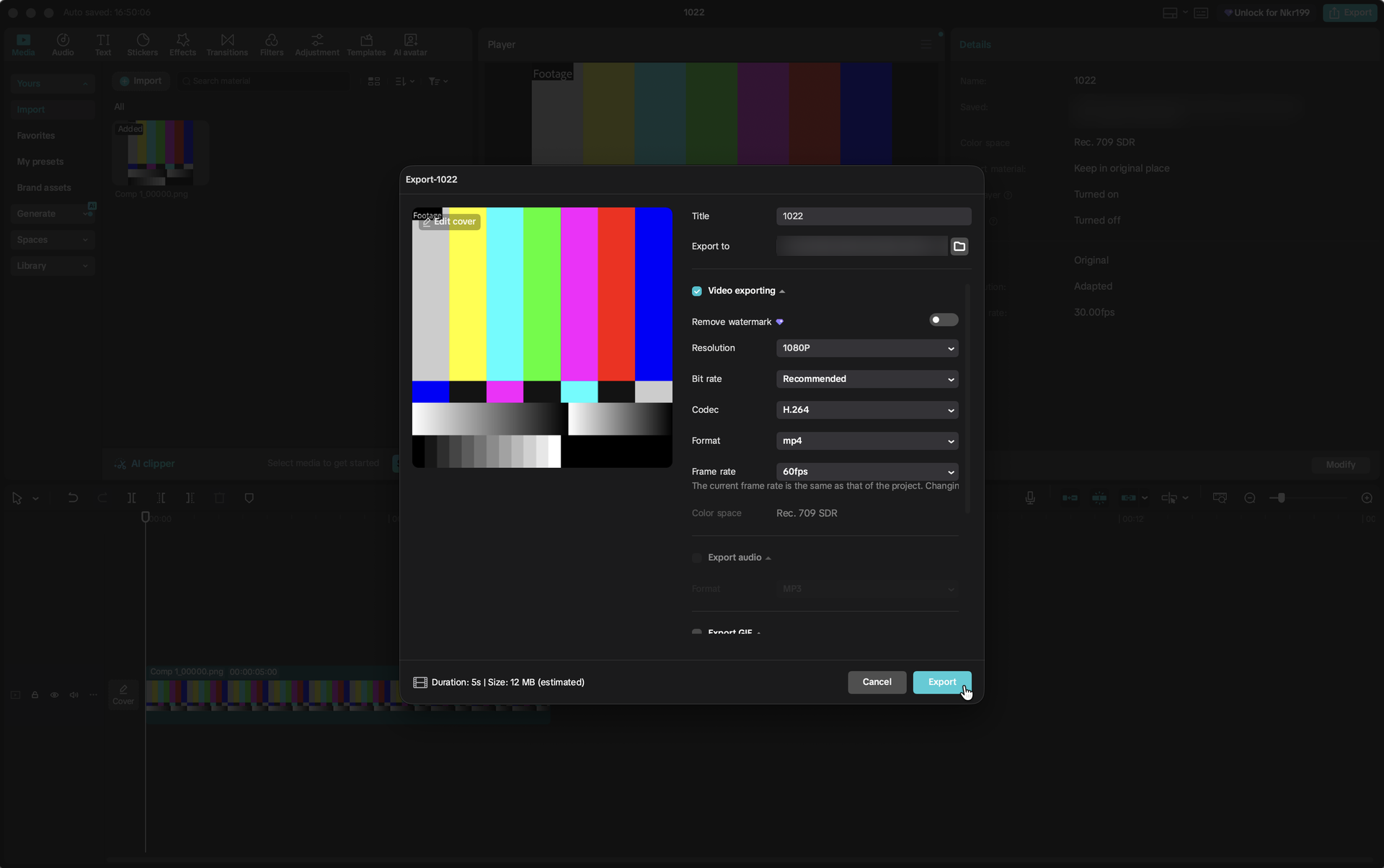
Set Resolution to 1080p (1), Codec to H.264 (2) and Format to mp4 (3).
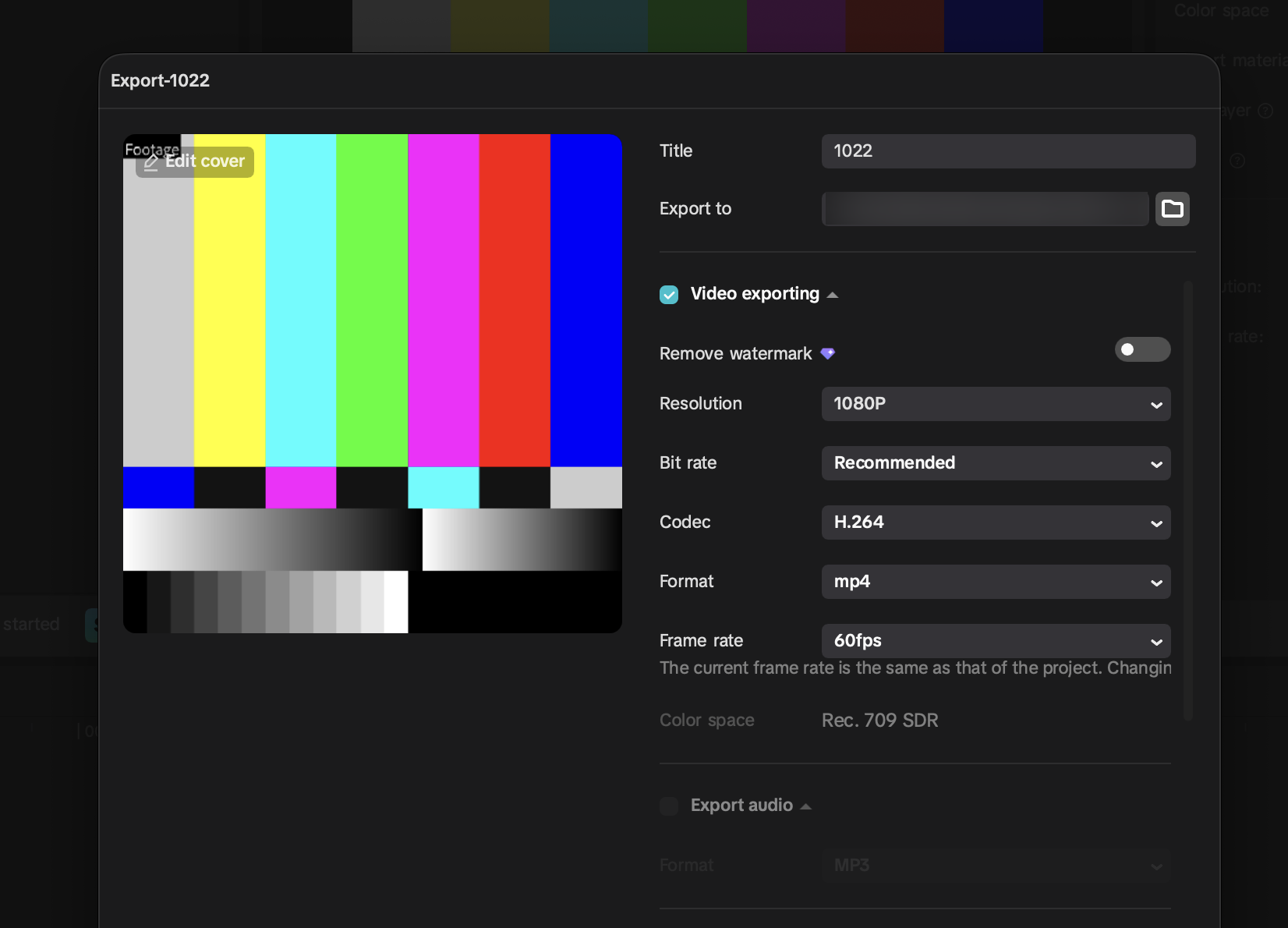
Set Frame rate to match your project.
When the export finishes, open the folder with your file.
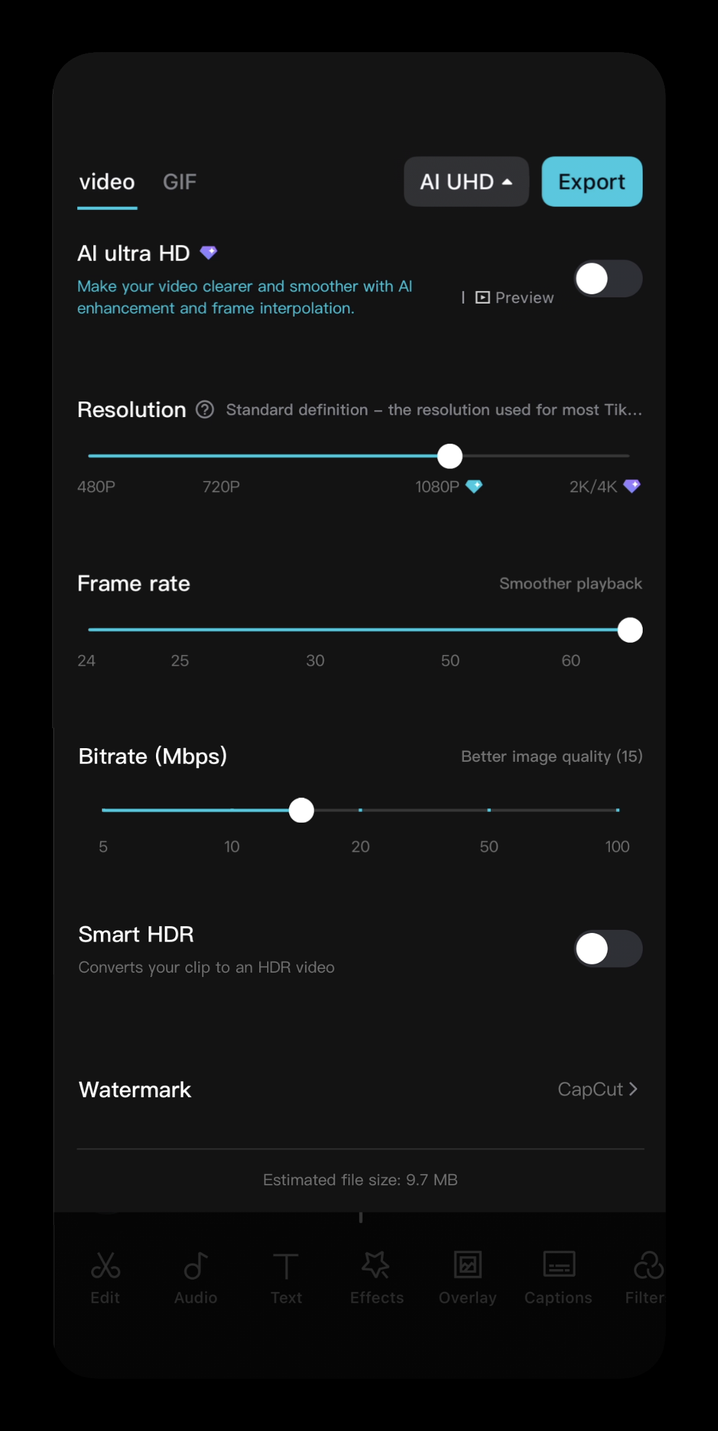
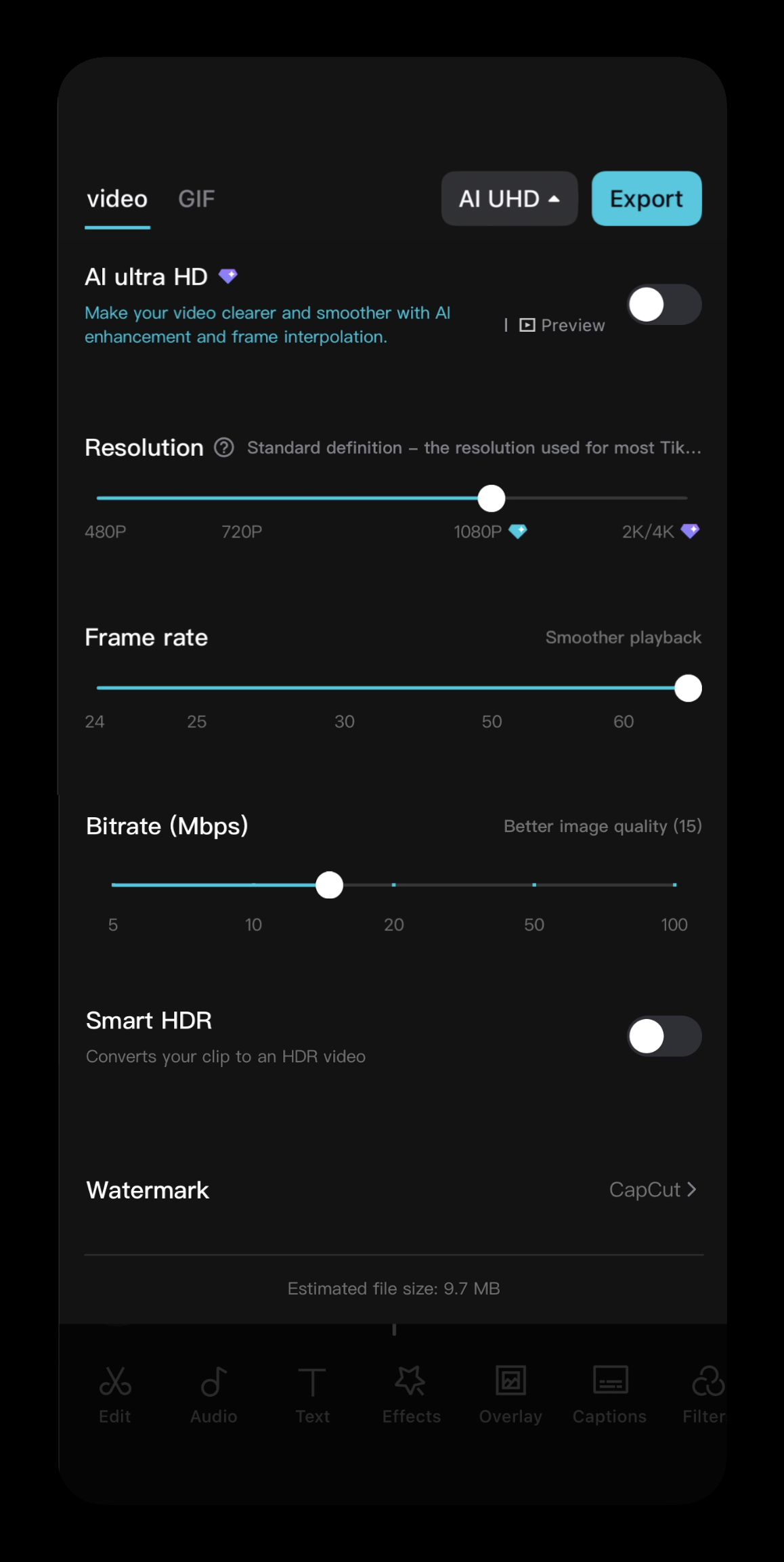
Tap the resolution label next to Export.
-
Set Resolution to 1080p (1) and Frame rate to match your project (2). Keep the bitrate at 20 Mbps or lower (3).
-
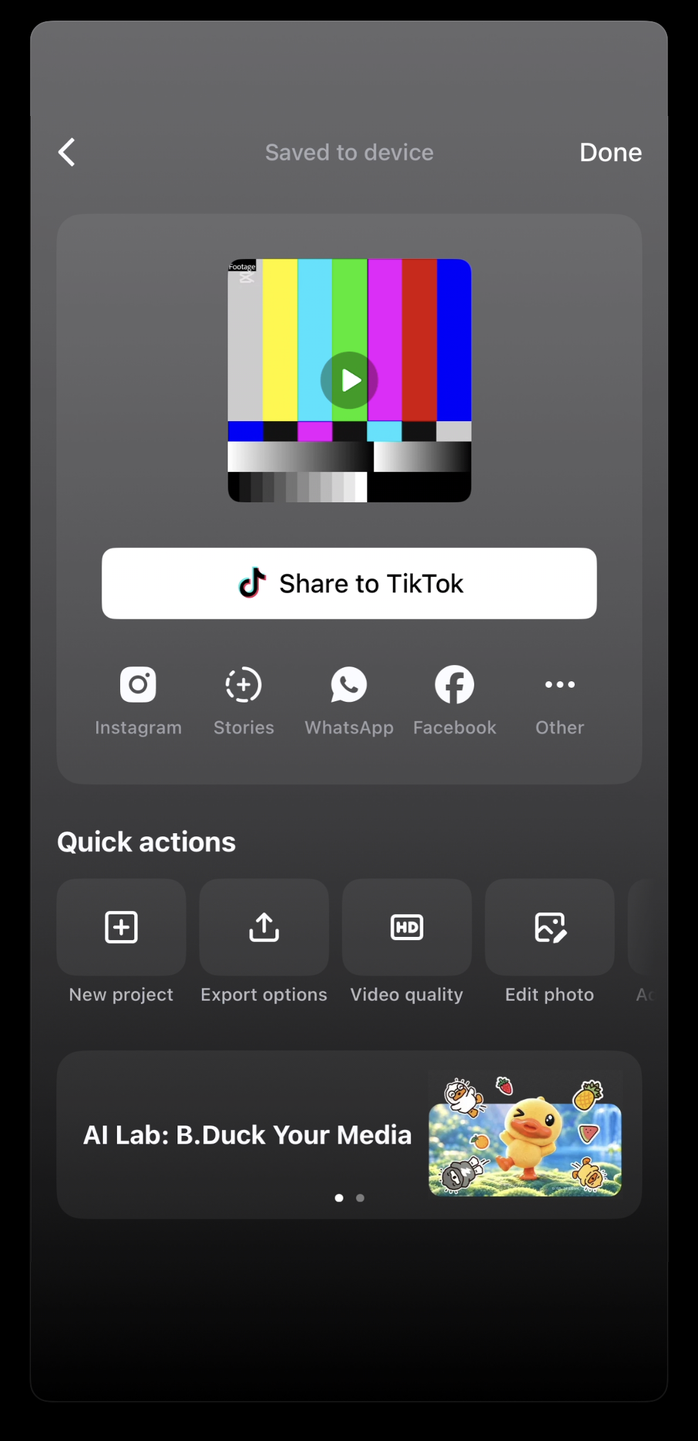
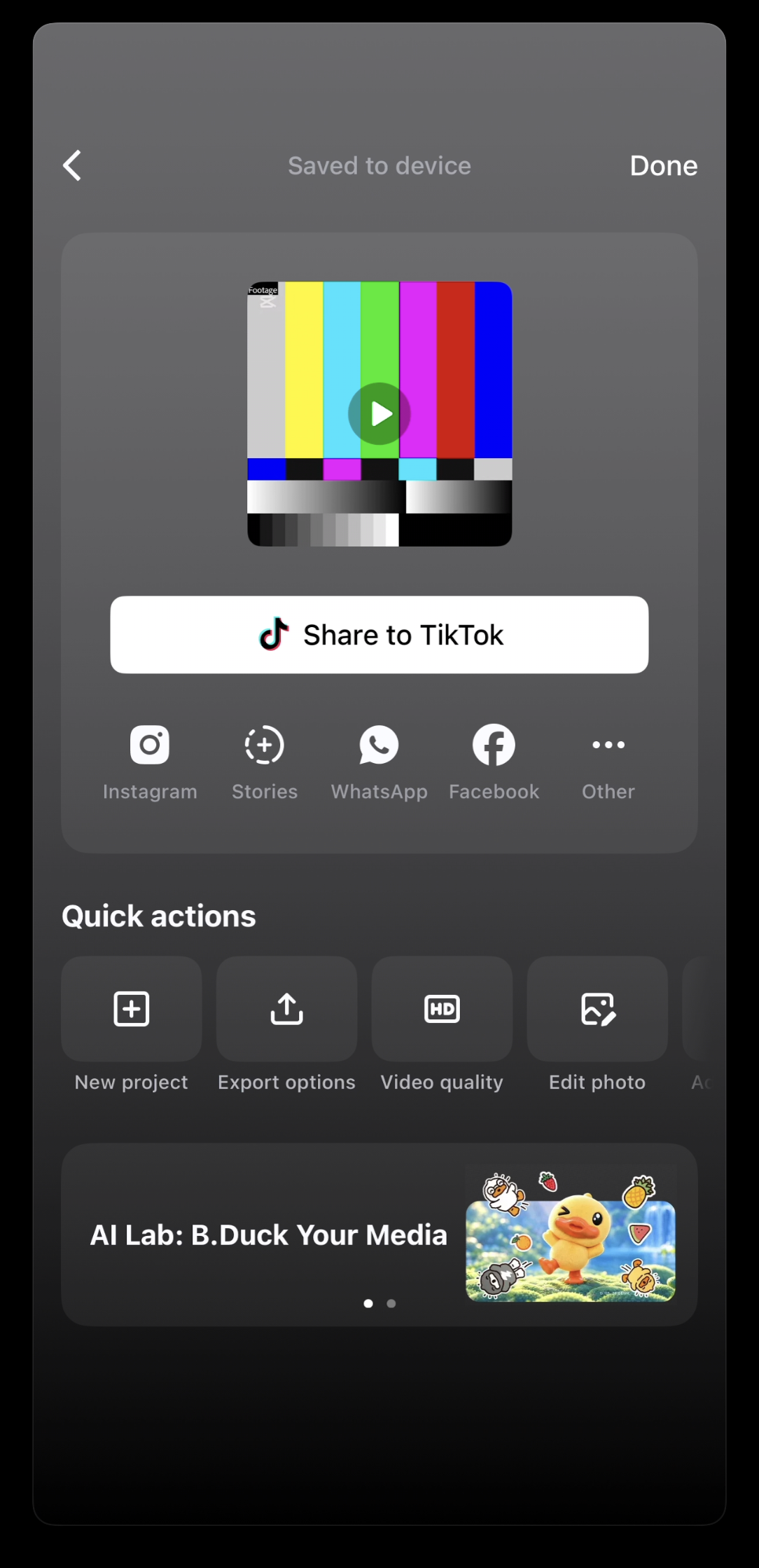
When the video is saved, tap Other.
-
If this sheet opens, tap the close button.

-
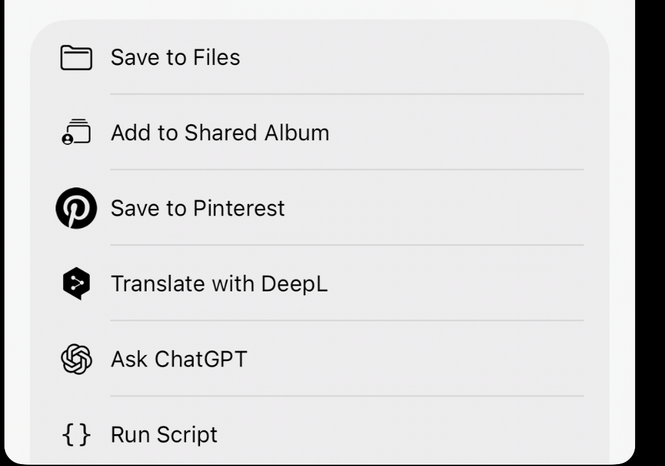
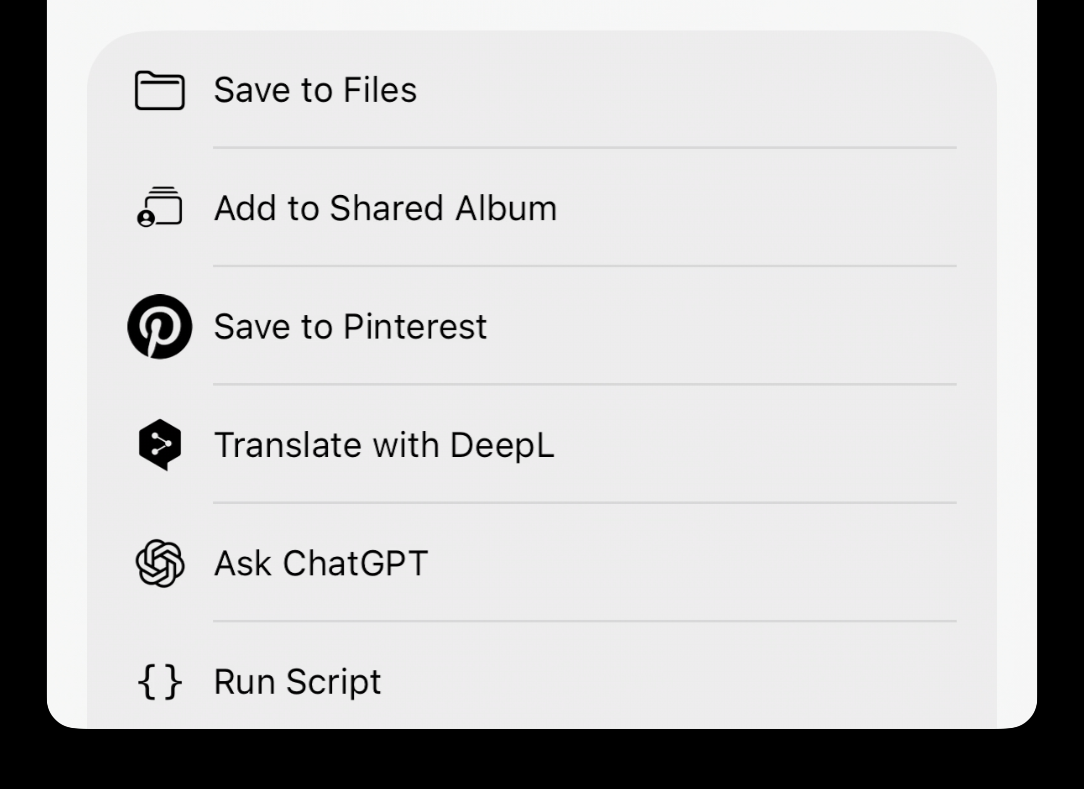
Tap Save to Files, then move the file to your computer.

Prepare the file on Upload120
The free plan covers 1 free patch a day, up to 40 MB and 60 seconds. After a confirmed referral, videos can be up to 30 minutes. For bigger files there are passes.
-
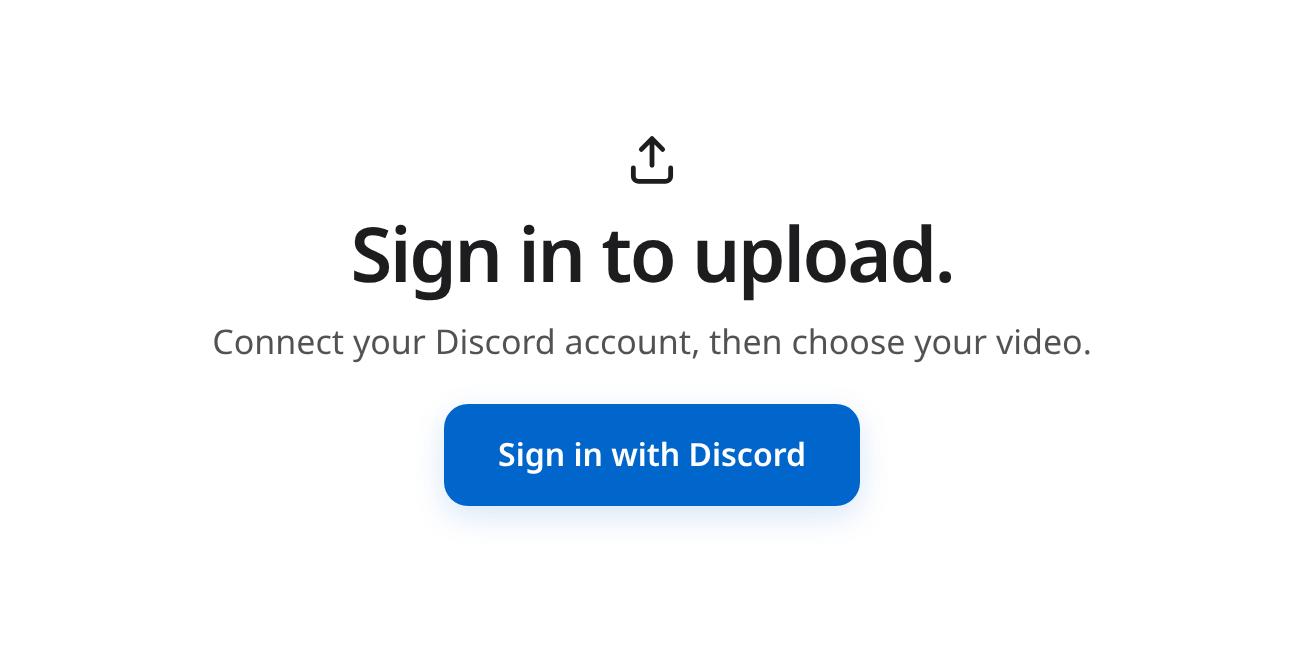
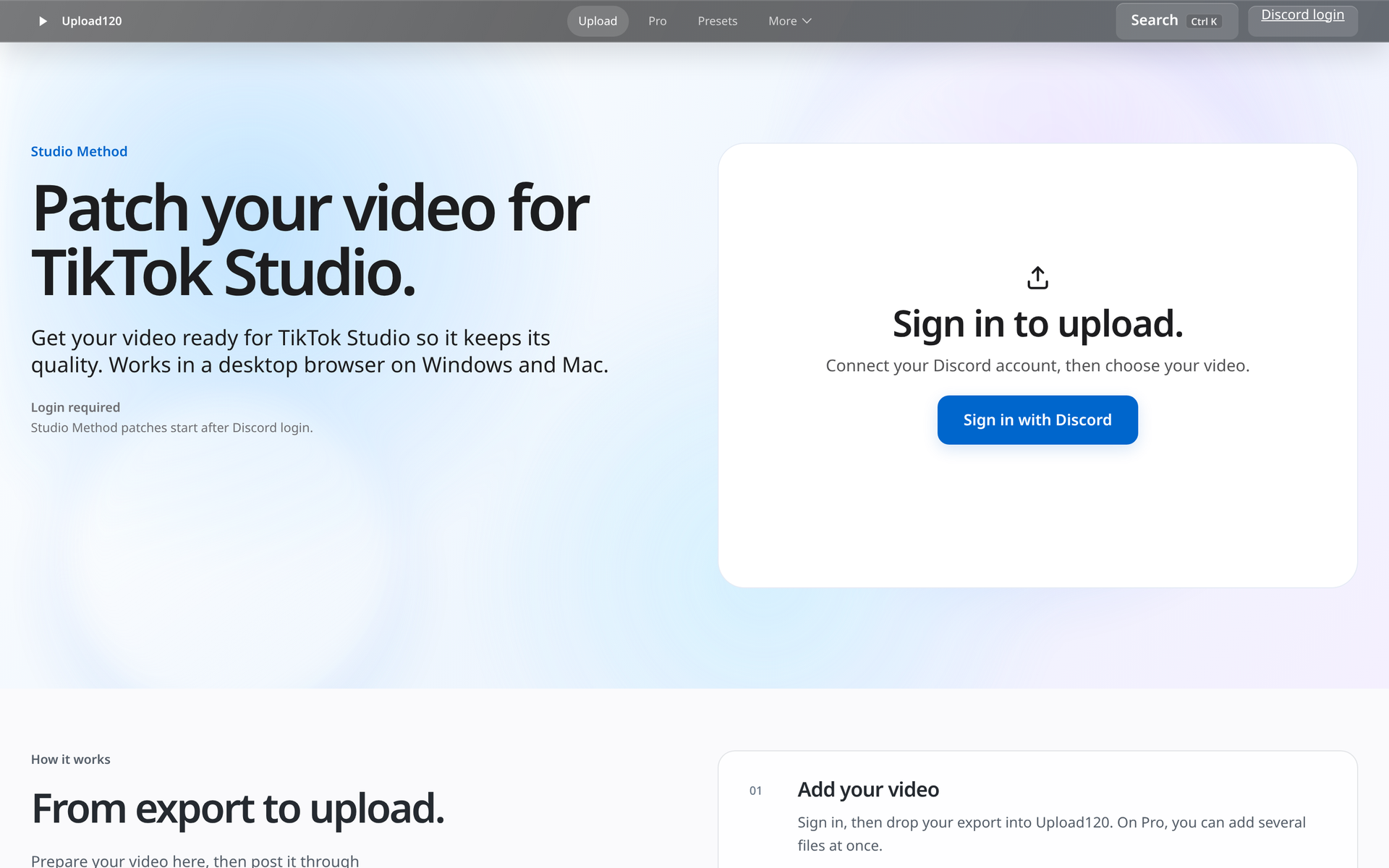
Go to Upload120 and click Sign in with Discord.
-
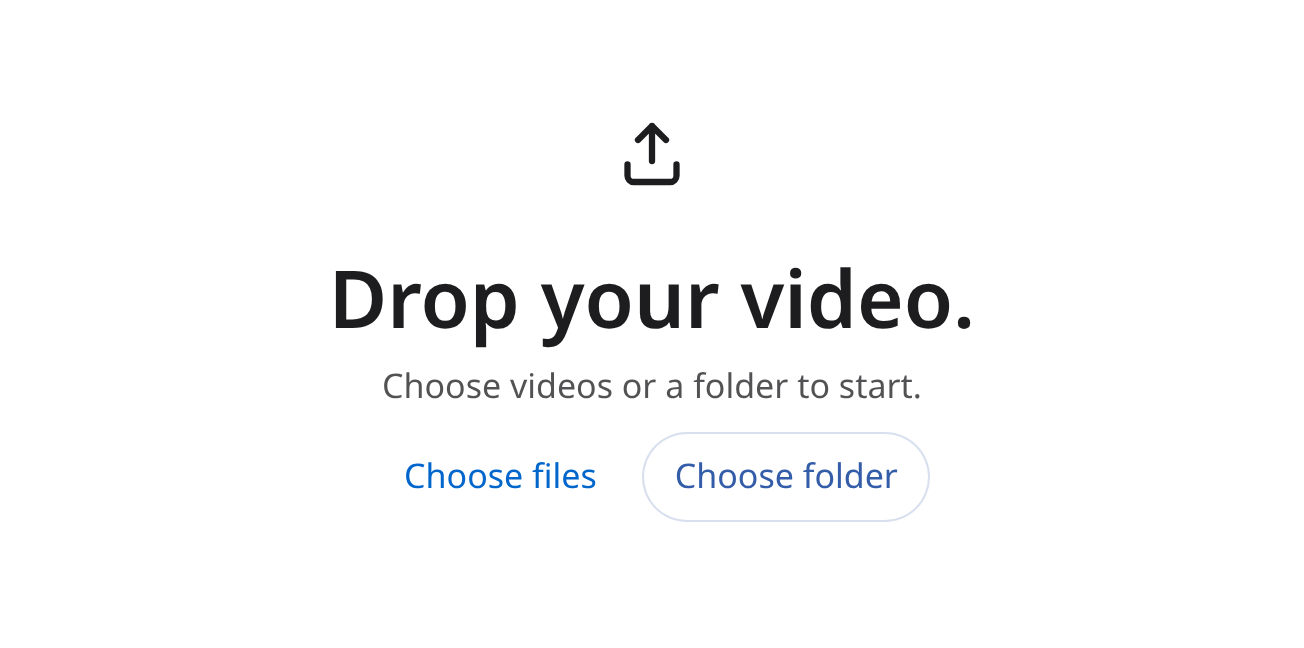
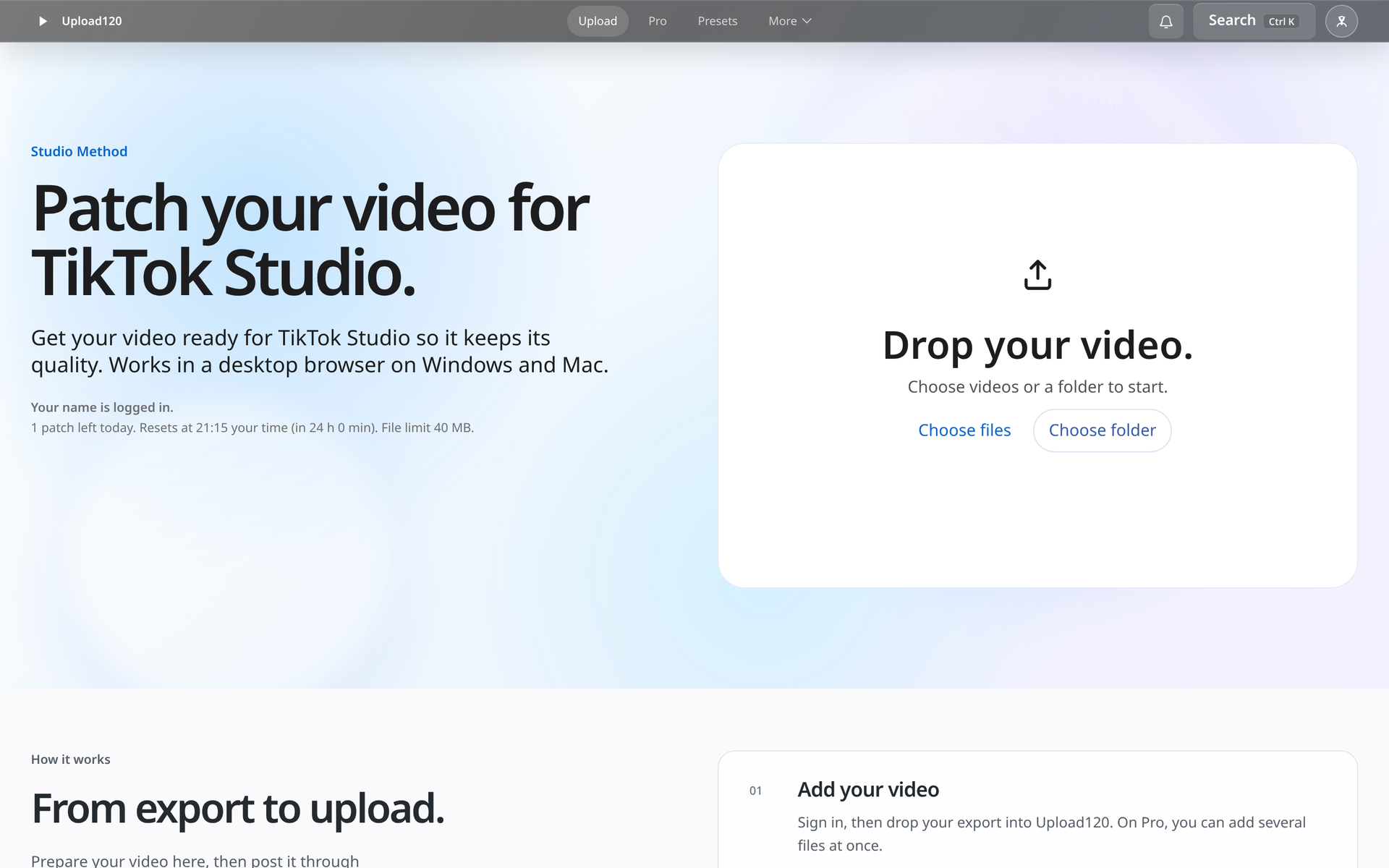
Click Choose files and pick your export. You can also drag it onto the page.
-
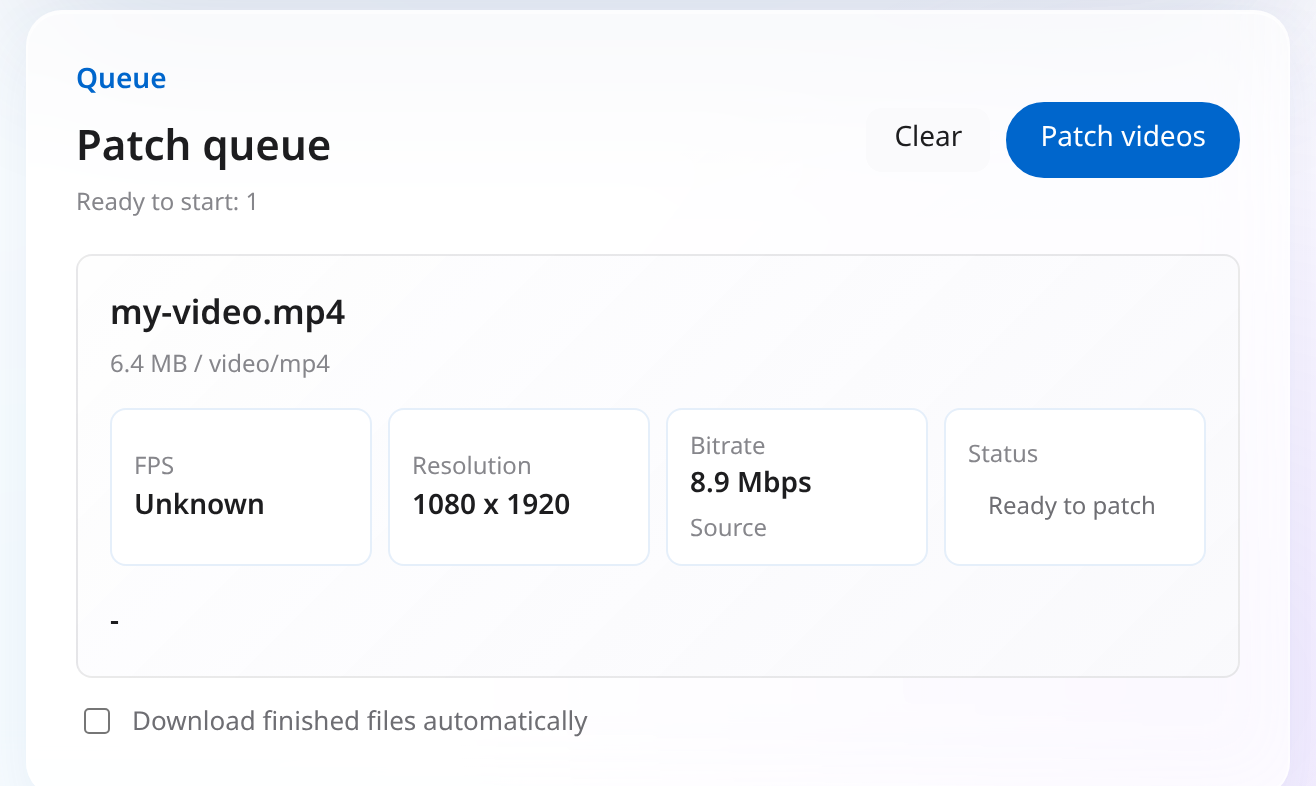
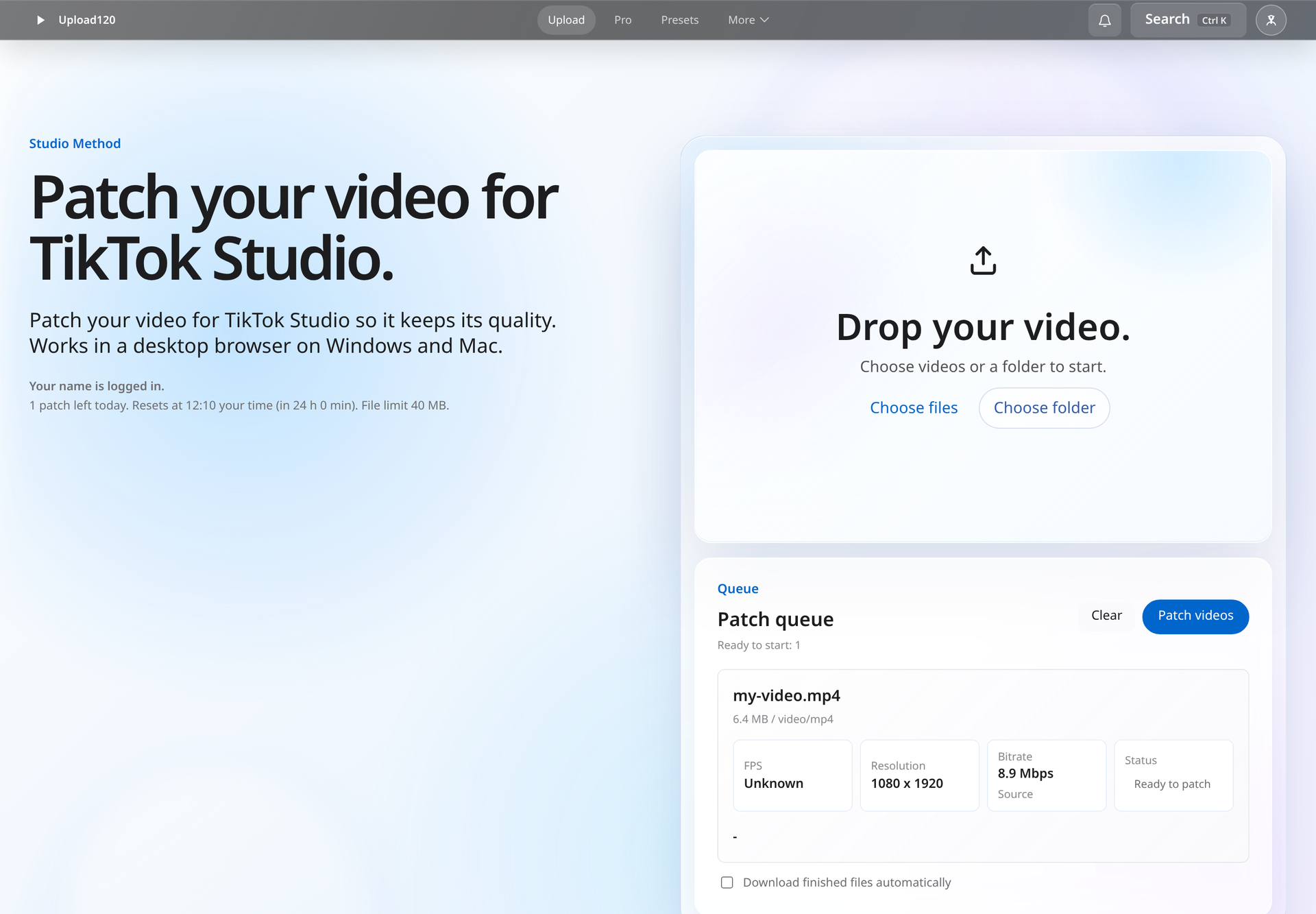
Click Patch videos.
-
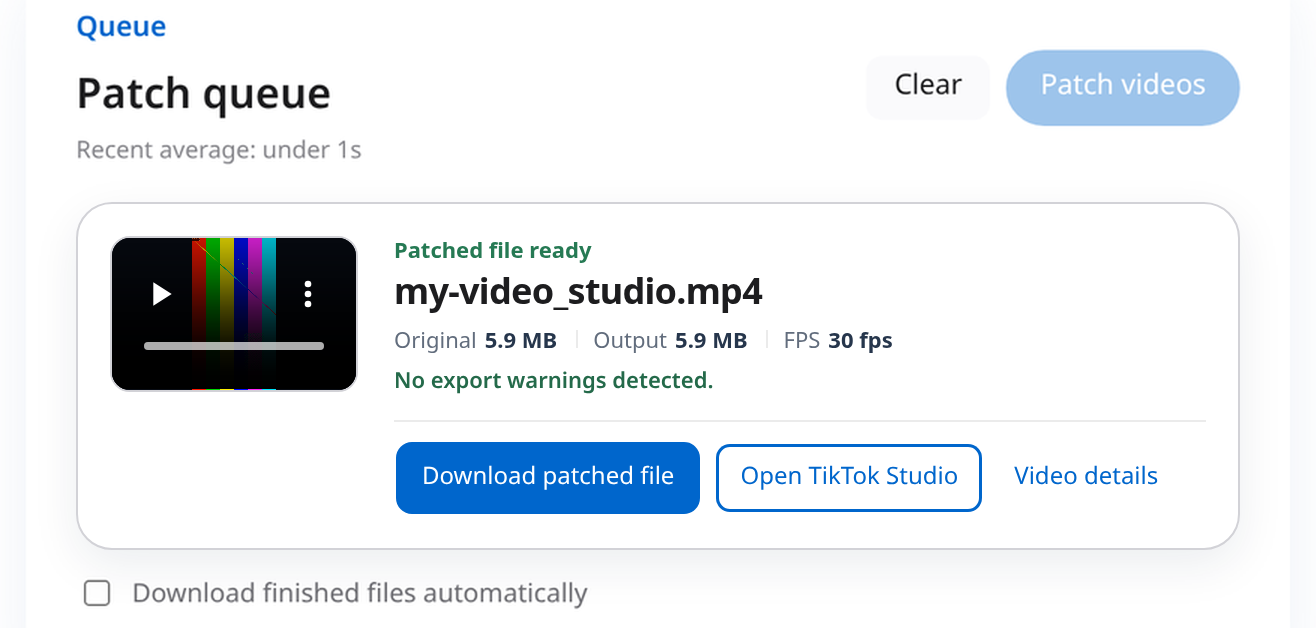
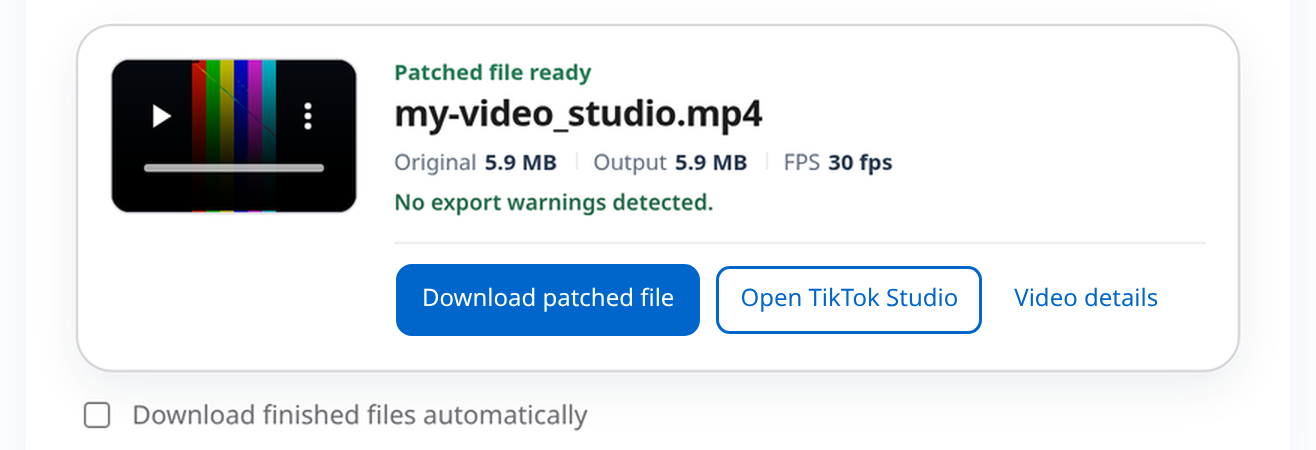
Wait until it says Patched file ready.
-
Click Download patched file. This is the file you'll post.
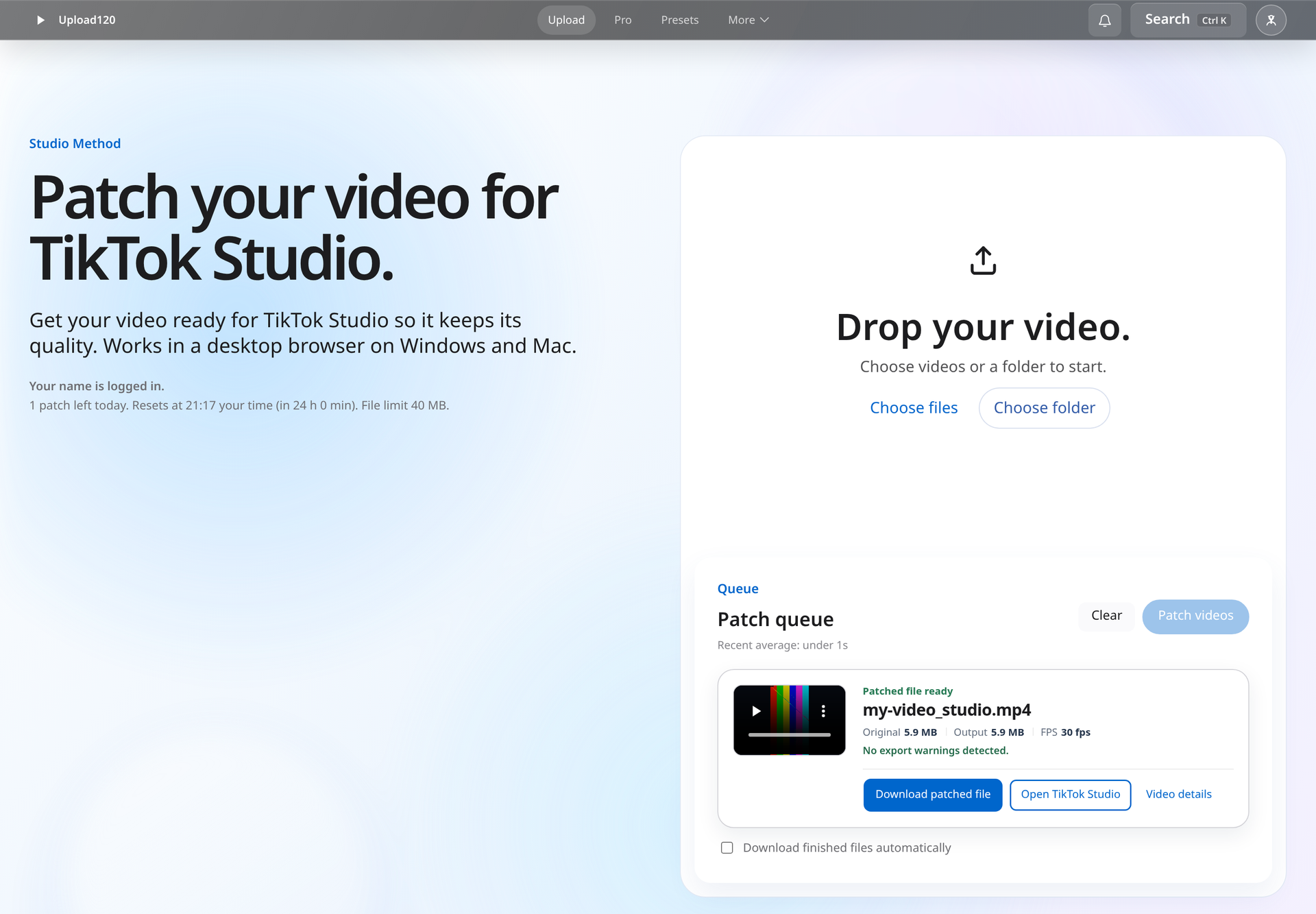
If you upload often, try the Chrome extension. In TikTok Studio, pick your original video and the extension prepares and selects the new file for you, with no download step. It works in Chrome on Windows or macOS.
Post it from TikTok Studio
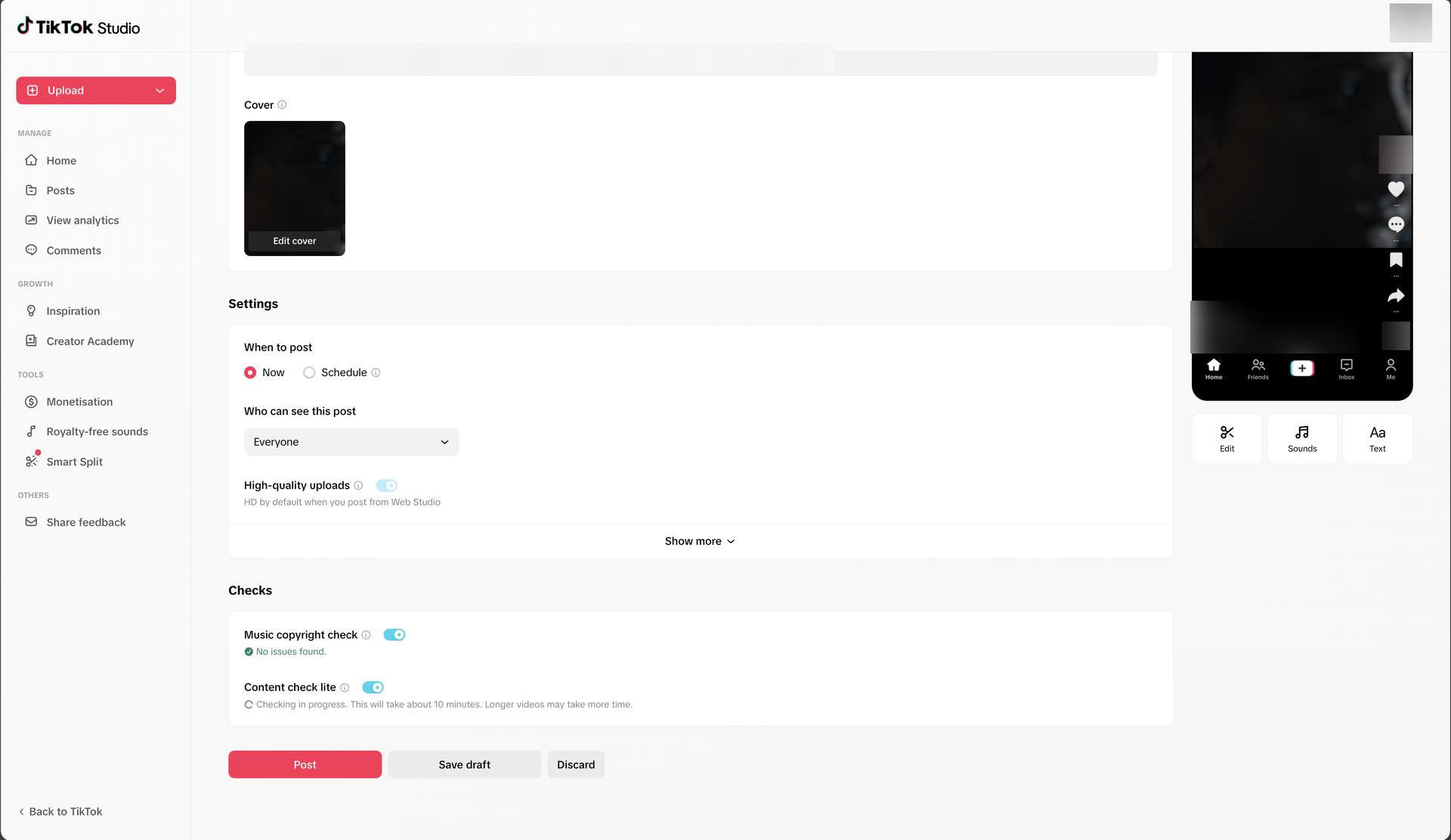
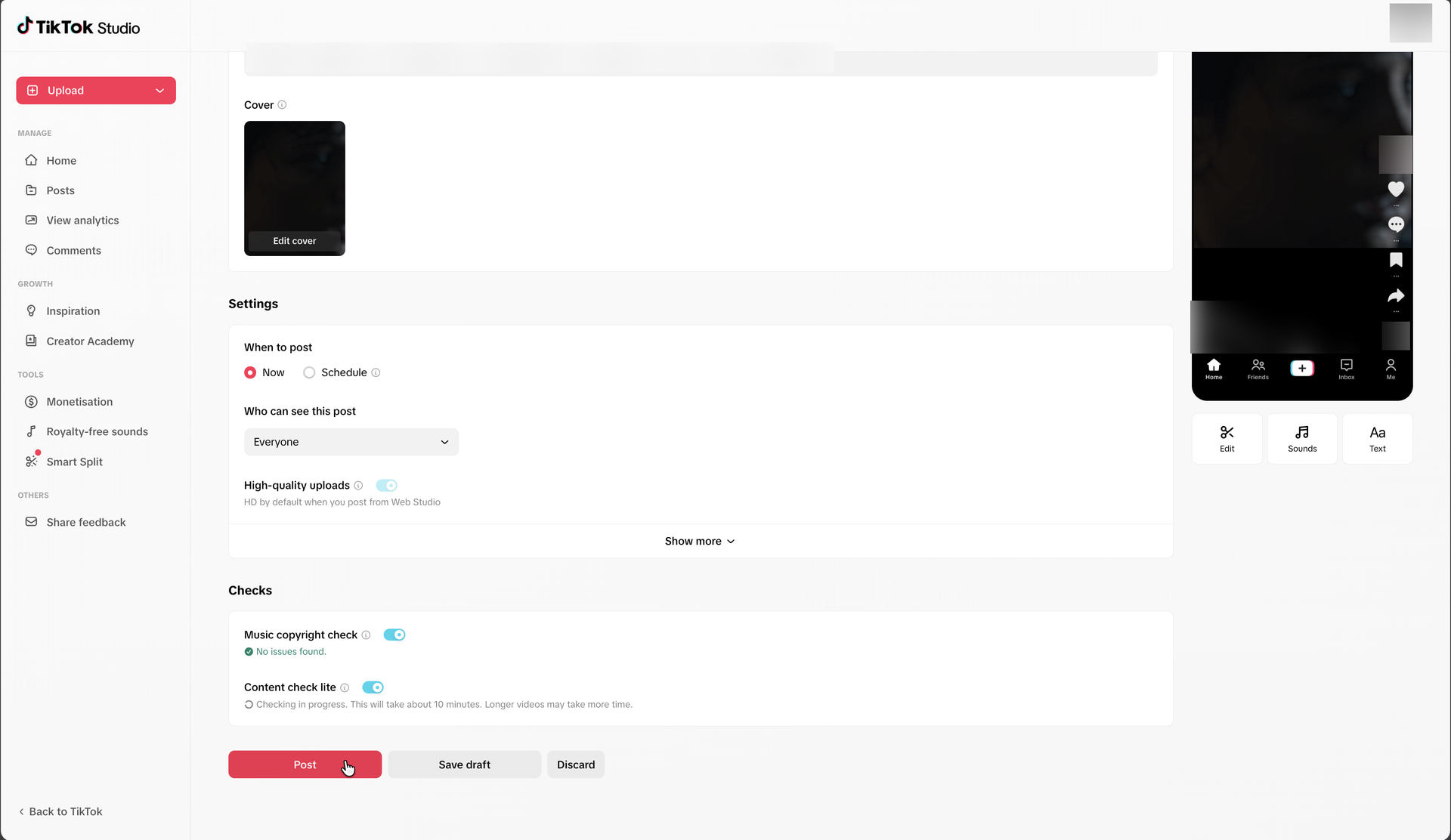
Open TikTok Studio in your browser, click Upload and pick the file you downloaded from Upload120.
-
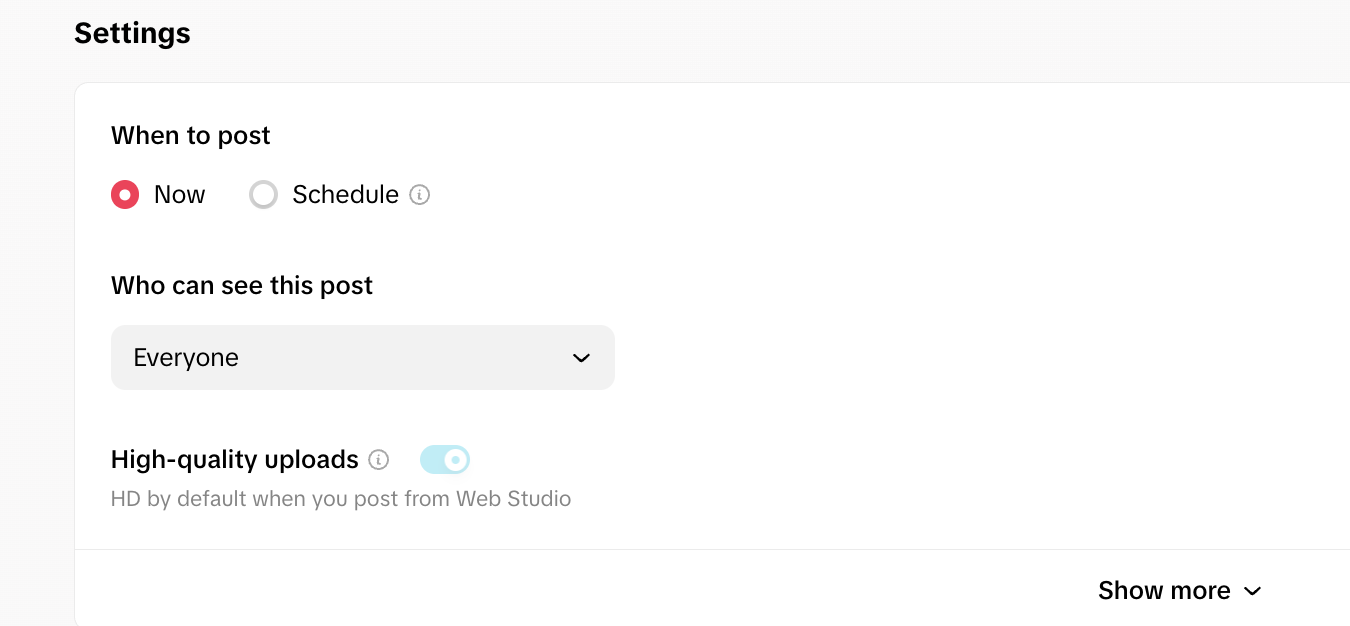
Leave High-quality uploads turned on.
-
Add your caption like you normally would, then click Post.

Check the posted video
Once it's live, paste the TikTok link into the checker and look at Playback file. That's the file TikTok makes available for playback right now, so you can compare it with your export.
Questions
Can I do this on a Mac?
Yes. Upload120 and TikTok Studio both work in a desktop browser on Mac and Windows.
Is it free?
Yes, for 1 free patch a day up to 40 MB and 60 seconds. Passes raise the limits.
Can I post from the TikTok app on my phone?
Not with this method. The upload has to go through TikTok Studio in a desktop browser. You can still edit on your phone and move the file to your computer, like in the CapCut mobile steps above.
My video still looks different. Why?
Run the post through the checker and look at Playback file. If it doesn't match your export, tell us on the support page.
How big can the file be?
On the free plan, up to 40 MB and 60 seconds. Passes take files up to 500 MB, or 2 GB with the 90-Day Pass.